
How to choose the tag style
Choose whether process, line category, quality status and product label tags show as a filled rectangle, with a coloured bar or with a square.
Shipping and reception processes, line categories, quality statuses and product labels show up across the application as small tags in the colour you gave them. You can choose how each of these four kinds of tag is drawn — one choice per kind, applied for every user of your account.
The three styles
- Rectangle in the tag's colour (the default) — the tag is filled with its colour: a soft tint for light colours, the full colour with white text for dark ones.
- White tag with a coloured bar — a white background with a thin bar of the colour on the left edge.
- White tag with a coloured square — a white background with a small square of the colour before the name.
Where the option is
Each kind has its own setting, under that kind's list in App Settings:
- Process tag style — on the Outbound tab, Shipping Processes tab, and also on the Inbound tab, Inbound Processes tab. It is the same setting on both pages, and it applies to shipping and reception processes alike.
- Line category tag style — on the Inbound tab, Line Categories tab.
- Quality status tag style — on the Products tab, under the Quality Statuses list.
- Product label tag style — on the Products tab, under the Product Labels list.
All four are also together on the General tab of App Settings.
Instructions
For process tags:
-
Go to App Settings, in the sidebar.
-
Open the Outbound tab and select the Shipping Processes tab.
-
Scroll to the end of the process list, to the Process tags block.
-
In Process tag style, open the list and choose a style. Each option shows an Example tag drawn in that style.
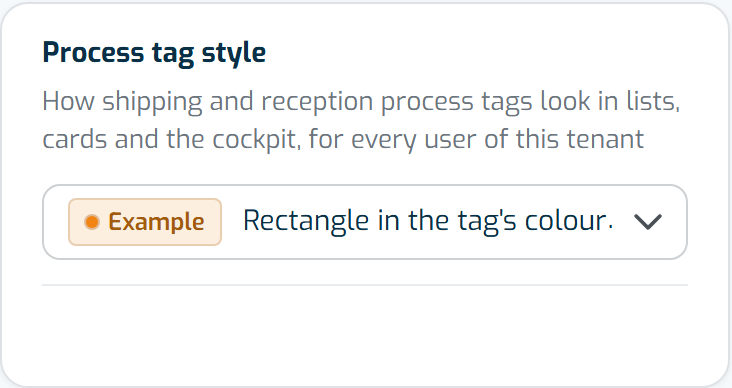
The Example tag, left of the chosen style, shows how your process tags will look. -
There is no Save button: your choice is saved straight away and Saved appears. If you changed it by mistake, select Undo.
For the other kinds, do the same under their own list or on the General tab.
Note
This is a display setting only: the style doesn't change what a process, category, quality status or label does.
Quality status colours
Quality statuses now have a colour, like processes, line categories and product labels. Pick it in the Colour field when you create or edit a quality status. Statuses that already existed get a neutral grey until you choose another colour.
In reception lines, the quality status appears next to the product in that colour, drawn in the style you chose for quality statuses.
Worth knowing
- Only users with access to App Settings can change the style.
- On your screen the tags change at once. Other users see the new style the next time they load the page.
- To go back to the rectangle, select Reset to default under the setting.
- To create processes, quality statuses or product labels, see How to Configure an Shipping Process?, How to configure a Reception Process?, How to set up Quality Control States? and Product labels: how to create and use them.