
How to generate Volume labels?
Generate volume labels in bulk or one at a time, choosing the template and which information the label carries.
A volume label identifies a box or pallet, and it can carry far more than the code: the product inside, the batch, the expiry date and the quantity.
As with every other label, the barcode type and size come from the Template you choose. What you decide at print time is which information gets printed.
In bulk
-
Go to Volumes in the Entities section of the sidebar.
-
Select Generate Labels.
-
Under Template, choose the volume label template.
-
Switch on or off the information you want on the label. Which options appear depends on the fields the chosen template includes — a template designed with only the code shows no batch or quantity options. Depending on the template, you may find:
- Show Volume Code
- Show Product and Product Description
- Show Batch and Show Expiration Date
- Show Quantity
-
Under Print Language, choose the label language, or leave Use current language.
-
In the table on the right, select the volumes you want to label.
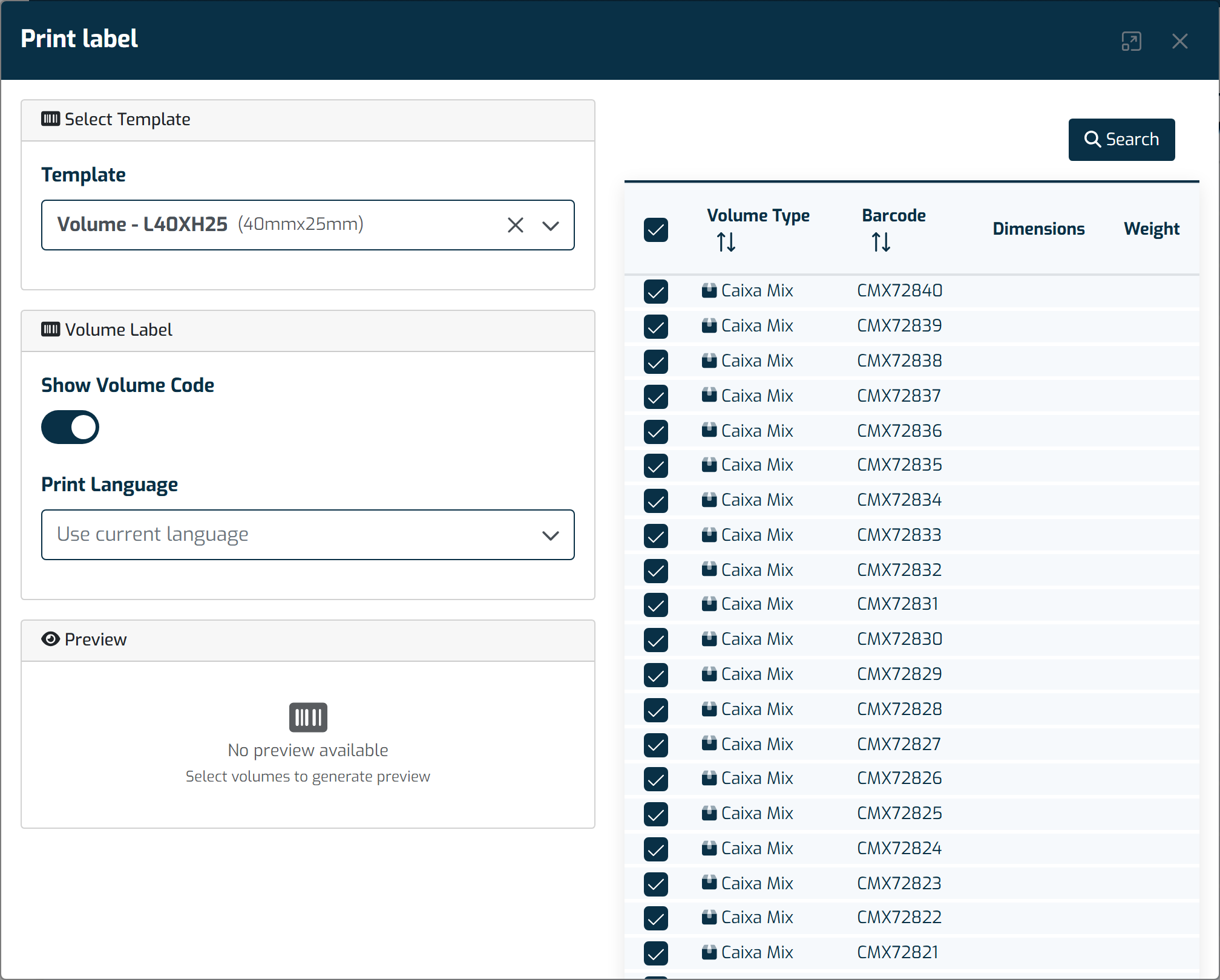
Beyond the Template, the volume label lets you switch the container code, product, batch, expiry date and quantity on or off. -
Select Print. A PDF is generated with the labels.
One volume at a time
- In the Volumes menu, open the actions menu on the volume row.
- Select the print label button.
- Confirm the Template and the information to show, then select Print.