
Product labels: how to create and use them
Create custom labels to tag and organize your products, then use them to filter and quickly find what you're looking for.
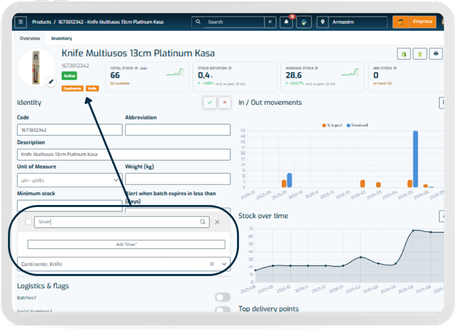
Product labels let you tag products with your own categories — like “Fragile”, “Promo” or “Top Seller” — so you can organize your catalog your way and find products faster.
Create a label
- Go to the Settings menu in the sidebar.
- Open the Products tab, then select Labels.
- Click + Add.
- Enter a Name and pick a Color for the label.
- Click Save.
Assign a label to a product
- Go to the Products menu and open the product you want to tag.
- In the General Information section, use the Labels field to select one or more existing labels.
- If the label you need doesn't exist yet, type its name and create it directly from the product page.
- Click Save.
Filter products by label
- Go to the Products menu.
- Use the Labels filter above the product list and select one or more labels.
- The list shows every product that has at least one of the selected labels.
Note: Labels are specific to your account — only active labels appear in the filter and in the product form. Deactivating a label removes it from these lists without deleting the history of which products had it.