
Batch assignment: how it works and how to restrict it
Explains how the system auto-assigns batches by FEFO/FIFO, how to restrict that choice with a minimum validity, and how to see which minimum validity applies to an order.
Whenever you send a Shipping Order to picking, if any of the articles have a batch and it hasn't been manually assigned, the system will assign one automatically. If there is no configuration that changes this, the system will assign a batch based on the FEFO (First-Expire, First-Out) and FIFO (First-In, First-Out) rules;
If you want to restrict this choice, you can set a minimum validity, in days: the system then only assigns batches that are still valid that many days after the order's Agreed Date. You can set it at five levels:
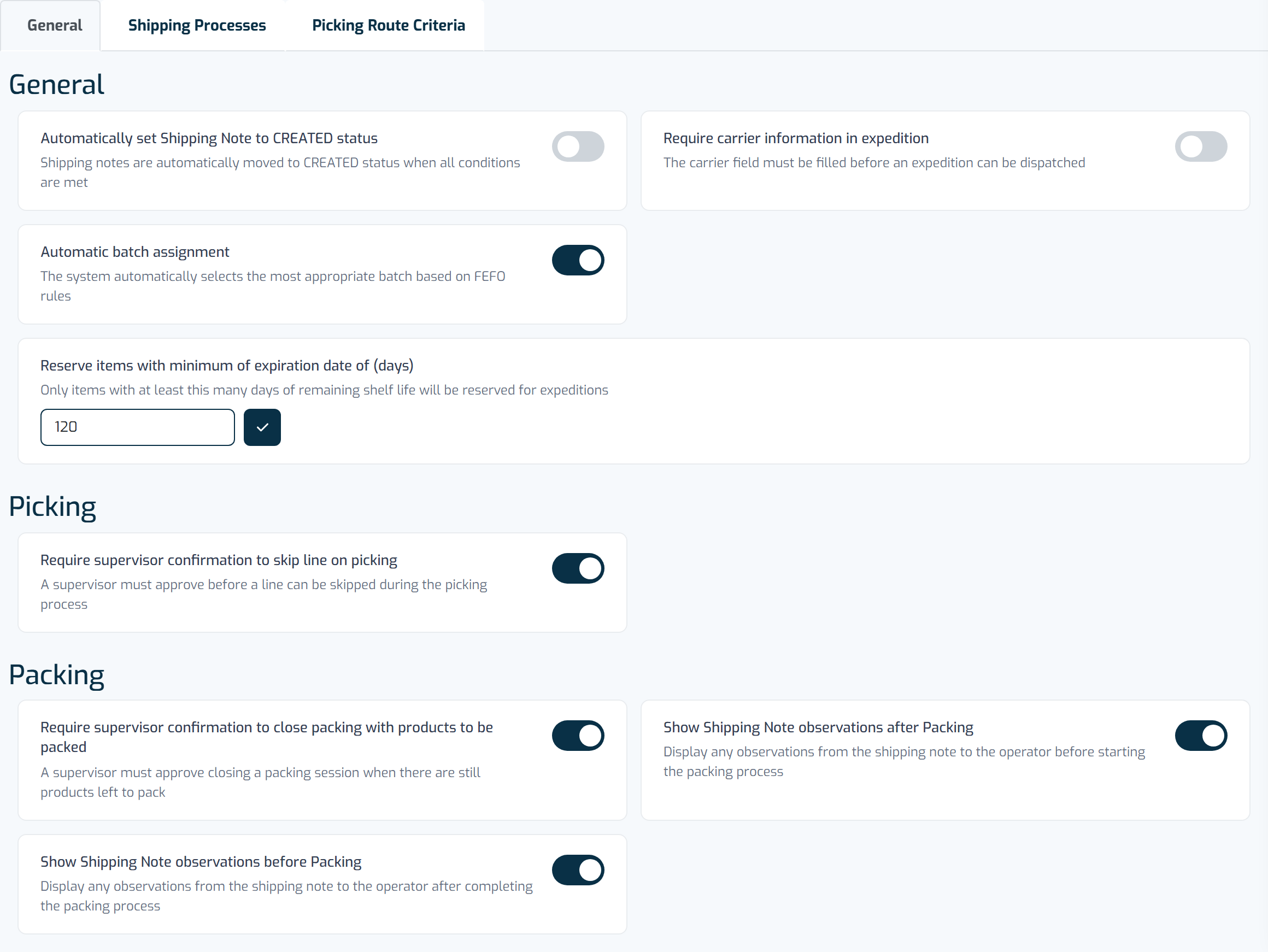
- Settings > Outbound -- in the General panel, sets the minimum validity for all shipping orders;
- Shipping Process -- Sets the minimum validity for shipping orders that use that shipping process;
- Delivery Point -- Sets the minimum validity for shipping orders going to that delivery point;
- Shipping Order -- Sets the minimum validity only for that shipping order;
- Shipping order line -- Sets the minimum validity only for that line.
In each of these places, fill in the minimum validity field: Reserve items for shipment with a minimum validity of (days) (in Settings it is called Reserve items with minimum of expiration date of (days)).
Note: if you configure more than one level, the most specific one wins: the line overrides the order, the order overrides the delivery point, the delivery point overrides the shipping process, and the shipping process overrides the general setting. A level left empty is simply skipped;
The Do not control Expiration Date option turns the check off altogether. You'll find it on the shipping process, the delivery point, the product and the shipping order (a batch or a line sent by an integration can carry it too). When it's on at any of these, the minimum validity isn't applied and any batch can be assigned, expired ones included. The check is also skipped when the order has no Agreed Date, because there's nothing to count the days from.
See which minimum validity applies to an order
Open the shipping order: in the General Information tab, the Reserve items for shipping with a minimum validity of (days) field always shows the minimum validity that applies to the order and where it comes from, for example "14 days · delivery point Central Pharmacy" or "30 days · general setting". If nothing is set at any level, it reads "Not set: lots only need to be valid on the agreed date"; if the check is off, it says so and why ("Not checked, expired lots allowed", followed by the record that turned it off, or "Not checked: the order has no agreed date").
When a line works out differently from the order, for example because the line has its own value or its product has Do not control Expiration Date on, an icon appears next to the line's product. Hover it to see the line's minimum validity and where it comes from. When you edit a line, the hint under its minimum validity field tells you what an empty field falls back to.
To see every record that uses something other than the general setting, ask Ticks, for example "which records use a different minimum validity?". Ticks lists, level by level, the records with their own minimum validity and the ones with Do not control Expiration Date on, plus the open orders with no agreed date.
Keep in mind that even if you have stock, if the existing stock doesn't meet the minimum validity that applies to the order, the system will mark the order as not approved. To get past this on a specific order, manually select the desired batch. The system will accept your decision over what is set in the settings.