
Finding orders in the Shipping Orders list
Use the quick filters, the search box and advanced search to find shipping orders, export your selection to Excel, and share a view through the page address.
What it does
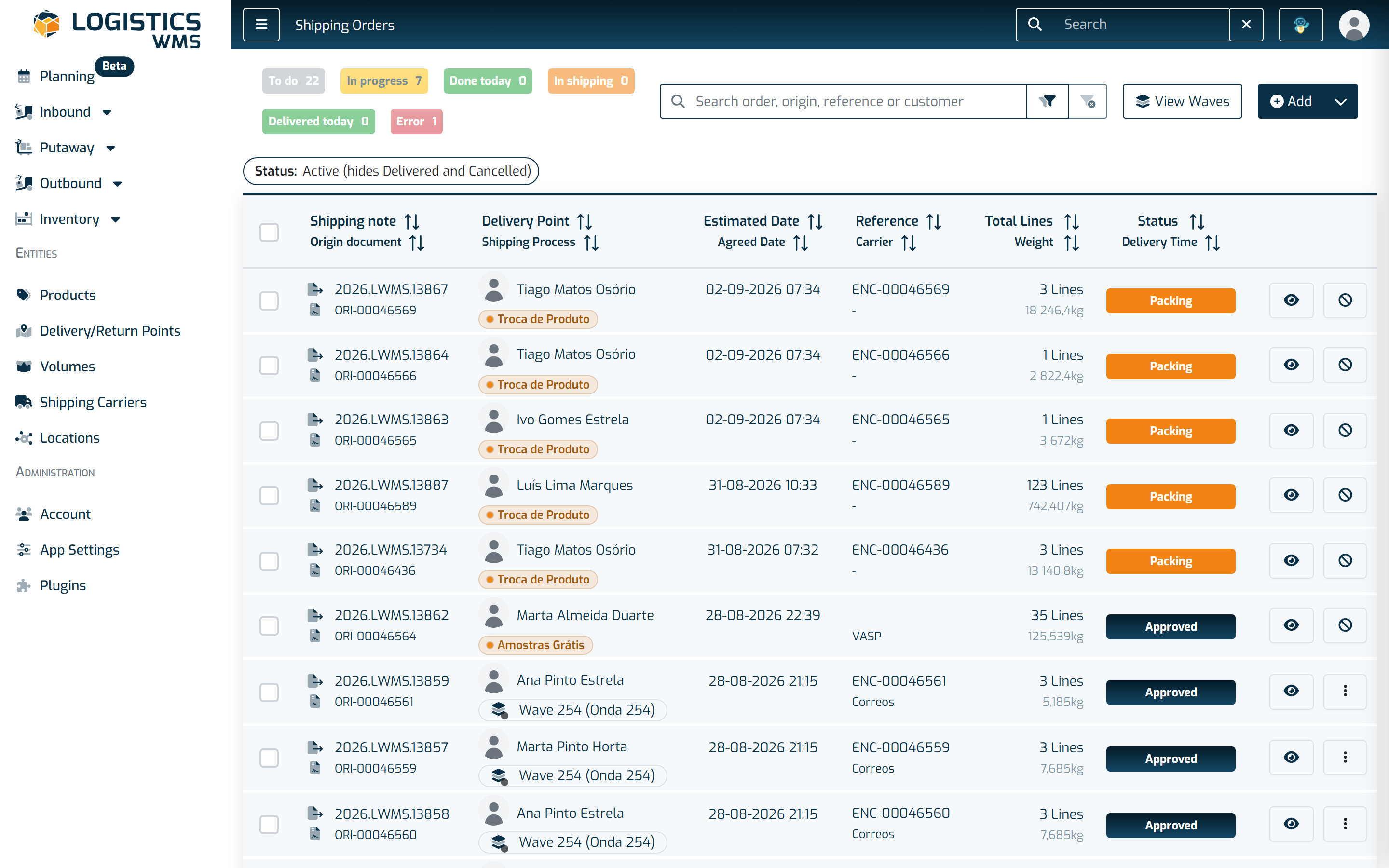
The Shipping Orders list has quick filters with counts, a search box, and an advanced search where you can pick several values in the same field. That way you can quickly find the orders that matter right now, for example the ones still to do, the ones with an error, or the ones for a specific carrier.
Quick filters
Above the list there are six quick filters, each showing how many orders match it:
- To do - approved orders, not started yet.
- In progress - orders being prepared, in Picking or Packing.
- Done today - orders the warehouse finished today (packing closed), whatever their status now.
- In shipping - orders prepared and not yet delivered, in Executed or In shipping.
- Delivered today - orders delivered today.
- Error - orders not approved, or delivered with an ERP or carrier integration error.
Click a filter to apply it, and click it again to turn it off. With no quick filter selected, the list shows Active orders, meaning every status except Delivered and Cancelled.
An order can appear under more than one filter: an order whose packing closed today and that has already been delivered counts under both Done today and Delivered today.
The counts follow your search and any filters you have applied, so they always show how many orders you will see when you click.
Search
The Search order, origin, reference or customer box searches as you type, across the shipping order number, the origin document, the reference, and the delivery point (customer) name.
If your search finds orders in other statuses that the current filter hides, you'll see N more matching orders in other statuses. Use Show all to see orders in every status, including Delivered and Cancelled.
Next to the search box there are two buttons:
- Advanced search - opens and closes the panel with all the filters.
- Clear - removes the search and every filter at once.
Advanced search
In the advanced search panel you can combine these filters:
- Shipping note, Origin document, Reference and Observations
- Status
- Shipping Process
- Carrier
- Carrier status - the status of the order's latest shipment with its current carrier (for example In Transit, Out for Delivery or Incident).
- ERP integration - All, Integrated, Pending or No integration.
- Wave - includes a None option, to find orders that are not in any wave.
- Delivery Point - you can pick whole delivery points or specific addresses.
- Document Date, Delivery Time and Agreed Date
In Status, Shipping Process, Carrier, Carrier status, Wave and Delivery Point you can pick several values. Within one field, the list shows orders that match any of the values; across different fields, an order has to match all of them. For example, two carriers plus the Approved status shows the approved orders of either of those two carriers.
Select Search to apply. Each applied filter shows up as a chip under the search bar, and you can remove it on its own without opening the panel.
Exporting to Excel
- Select one or more orders in the list.
- Use the Bulk Selection button, which shows how many orders you have selected.
- Choose Export selection to Excel to export only the selected orders, or Export all pages to Excel to export every order that matches the current search and filters.
💡 Note: The Bulk Selection menu also holds the bulk actions, such as Ship Selected, Cancel Selected and Reopen Selected.
What the file contains is described in Exporting documents to Excel.
Sharing or bookmarking a view
Your search, the quick filter and the advanced search filters are kept in the page address. You can bookmark the page or send the address to a colleague, and the list opens with exactly the same search and filters.
Important notes
- The same quick search box and status filters with counts are also available on the other list screens, such as Reception Notes, Manage Reception, Products, Delivery/Return Points and Inventory by Location, and on the line lists inside documents.
- The statuses of an order are explained in Shipping Order Status, and shipping in How to ship an order.