
How to check the stock of a product/batch?
Three ways to check the stock of a product or batch in LogisticsWMS: from the product record, from the search bar, and from a document.
"How many of these do we have?" is probably the question asked most often in a warehouse — before accepting an order, halfway through picking one, or just to work out where something ended up.
LogisticsWMS always answers it in the same place: the Inventory tab of the product record. What changes is how you get there, and there are four routes. They all end at the same screen, so it is worth knowing all of them and taking whichever is quickest from wherever you already are.
1. From the product list
The most direct route when you have nothing open yet.
Open Products from the side menu, under Entities.

Notice that the list itself already carries an Available Stock column. If your question is simply "is there any?", you can often stop here — no need to open the record at all.
When you need the detail, click View on the product's row and open the Inventory tab.
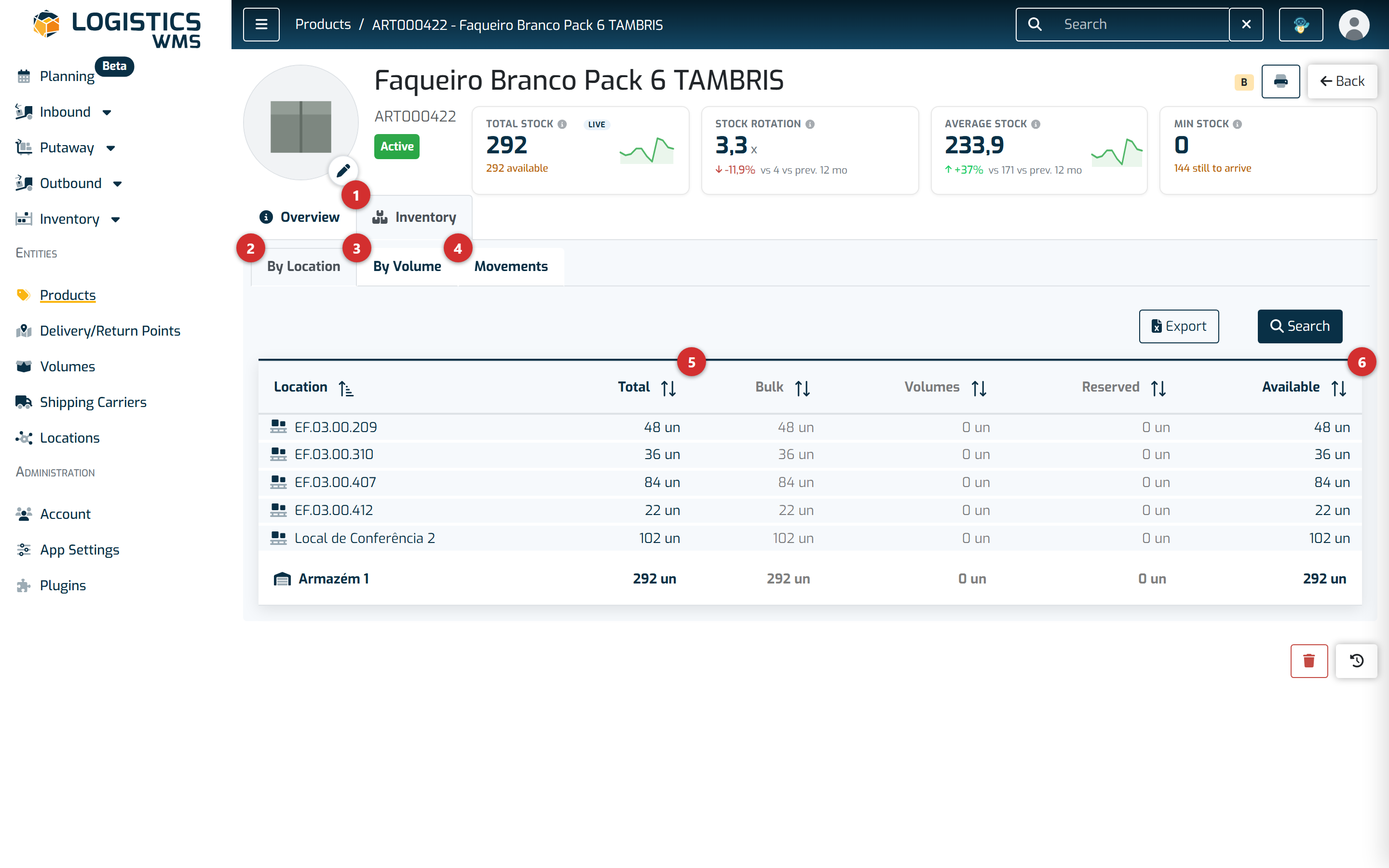
- The Inventory tab is where all of the product's stock lives. It sits next to Overview, which shows the record itself — description, barcodes, weights.
- By Location answers "where is it?". One row per location, plus a batch column when the product is batch-managed.
- By Volume answers the same question grouped differently: by pallet, box or container. It is the right view when you are about to go and fetch something.
- Movements is the history: every entry and exit, with date, quantity and origin/destination. Useful when the numbers do not add up and you want to know why.
- Total is everything held at that location, whether or not it is committed.
- Available is what remains once reservations are deducted — and this is the number that matters when you are deciding whether you can fulfil an order.
The last row totals the whole warehouse, so you do not have to add the locations up yourself. While the tables are still loading you see a loading indicator, so an empty table always means there really is nothing there.
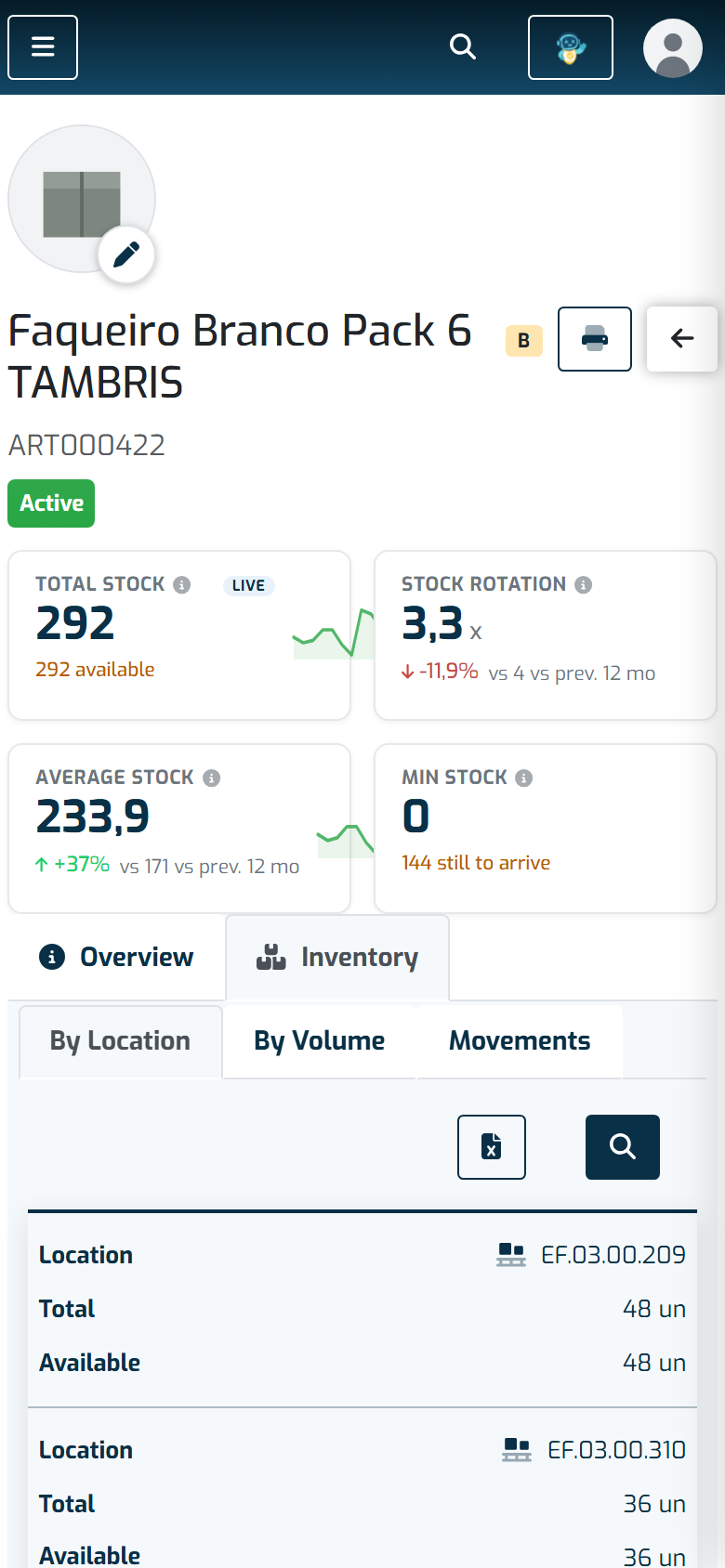
On a phone it is the same screen, laid out differently: the table becomes one card per location, with the same values stacked. This is the view you will spend most of your time in if you are working from a handheld.
By Volume
The By Volume tab answers the same question grouped differently: instead of one line per location, one line per pallet, box or container.
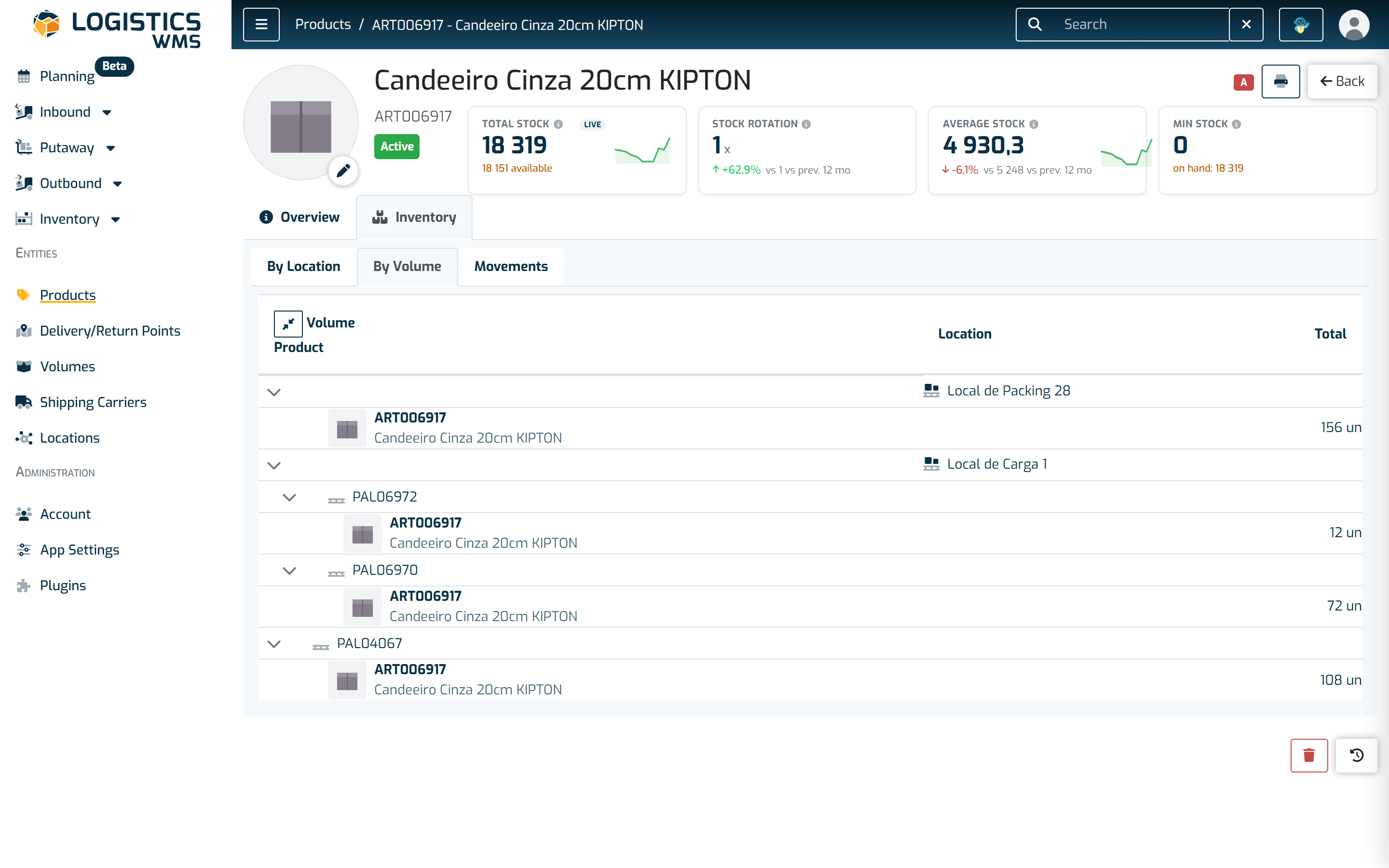
Each volume expands to show what it holds, and carries its location alongside. This is the right view when you are about to send someone to fetch something: what you tell them is not "72 units in Local de Carga 1", it is "pallet PAL06970".
The example shows a different product, because the previous one is not palletised — its volumes column is zero in every location. A product that only exists in bulk has this tab empty, and that is an answer in itself.
Movements
The Movements tab is the history: every entry and exit for the product, with the date, type, quantity and origin/destination.
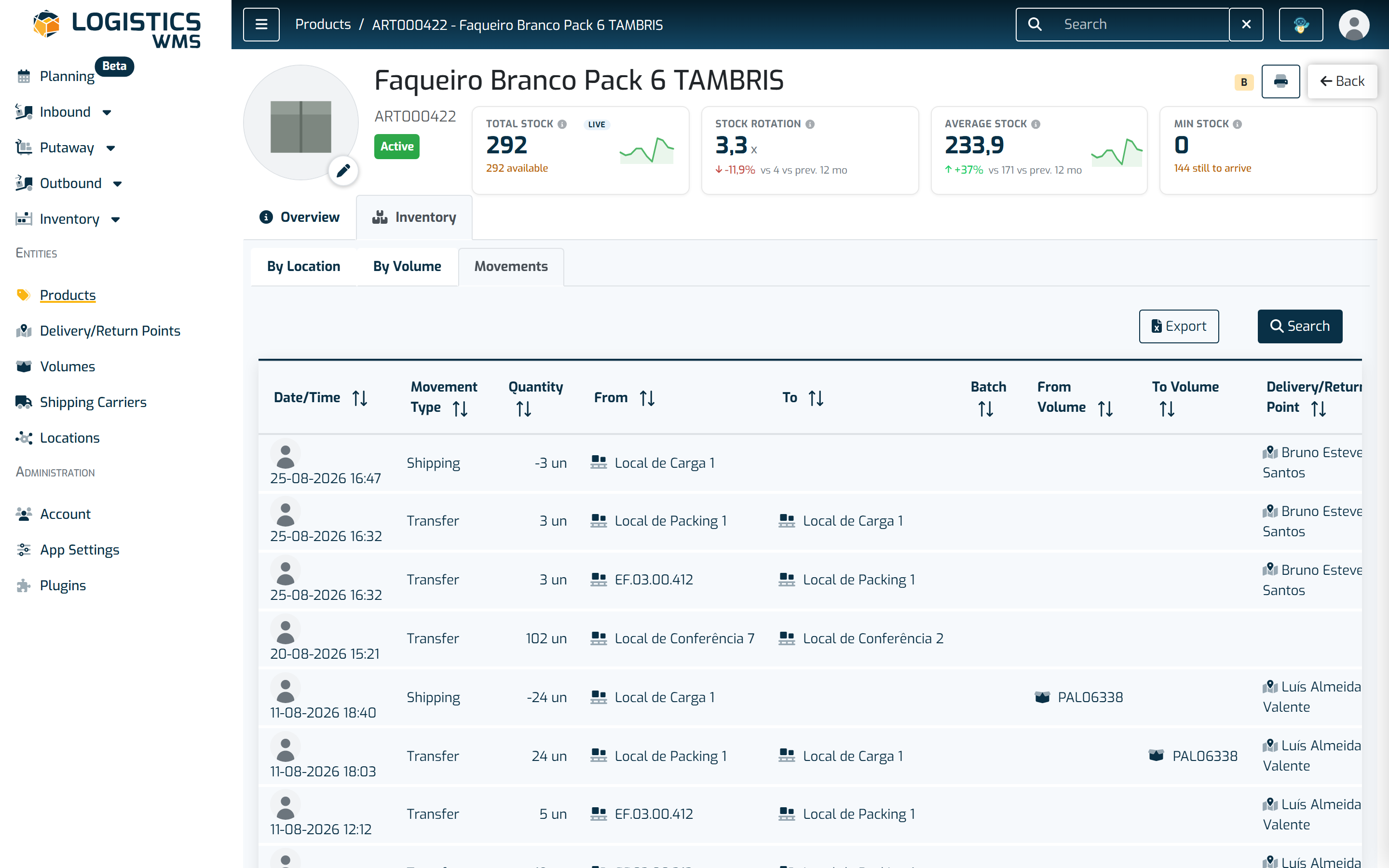
Quantities are signed, and the type says what happened: Reception adds, Shipping subtracts, Transfer moves between locations without changing the total. This is where discrepancies get settled — when the number on screen does not match the number on the shelf, the explanation is usually in the last few lines of this list.
2. From anywhere the product appears
This is the shortcut fewest people know about and the one that saves the most time.
Wherever a product is shown in the application — on a document line, on a picking screen, in a list of containers — its code and description appear together as a small card. That card is clickable: press the product's icon and a window opens with the essentials and three shortcuts.
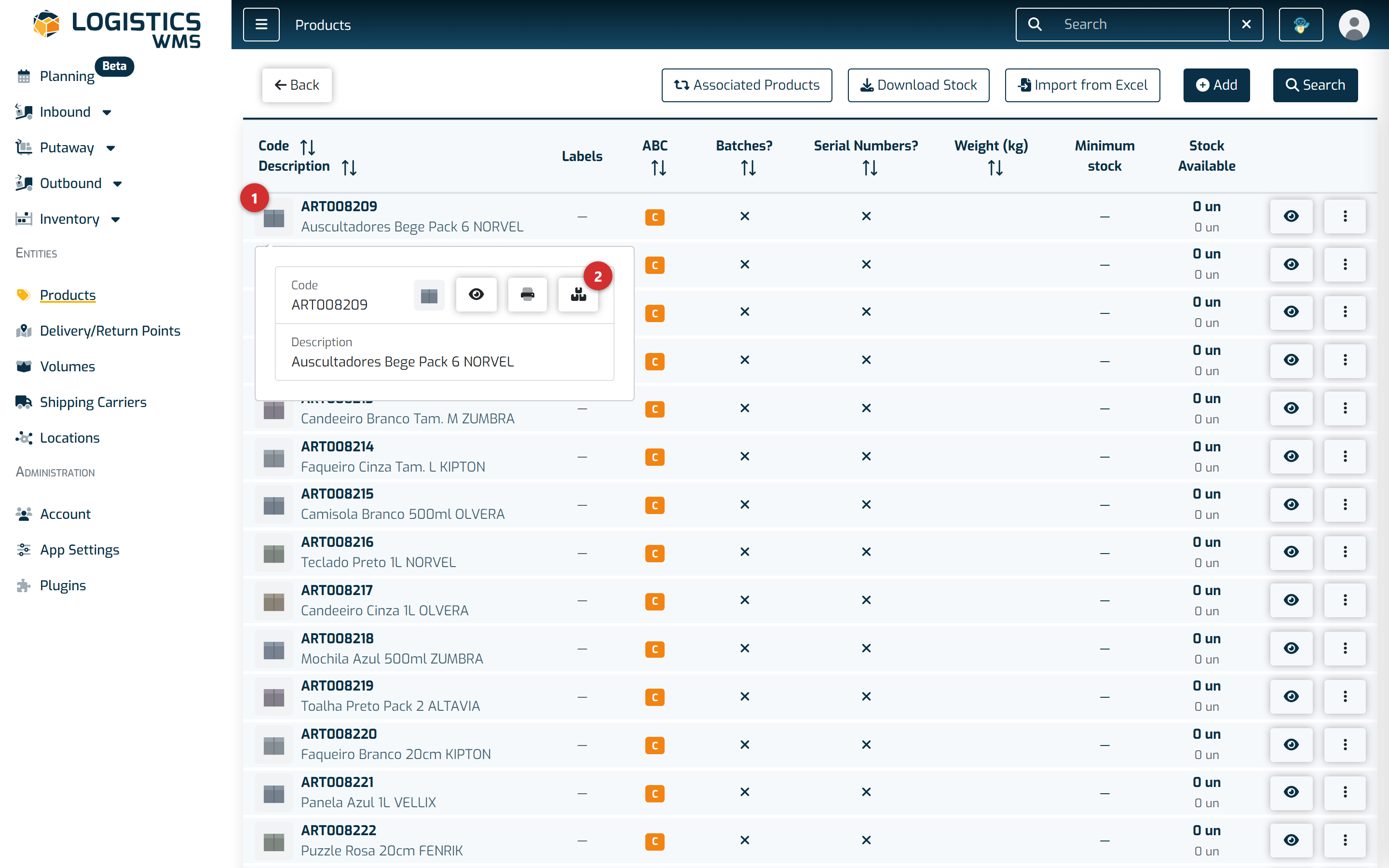
- Press the icon to the left of the product code. This works on any screen that shows products, not only on this list.
- The last of the three buttons takes you straight to the stock. The other two open the full record and print the label.
Because the window opens over whatever you were doing, you keep your context: close it and you are exactly where you were. That is why this route is usually the most practical mid-task.
3. From the search bar
When you already know the code or the name, this is the fastest route — it works from any screen, without losing what you were doing.
Type the code or description into the search bar at the top of the application and press Enter.
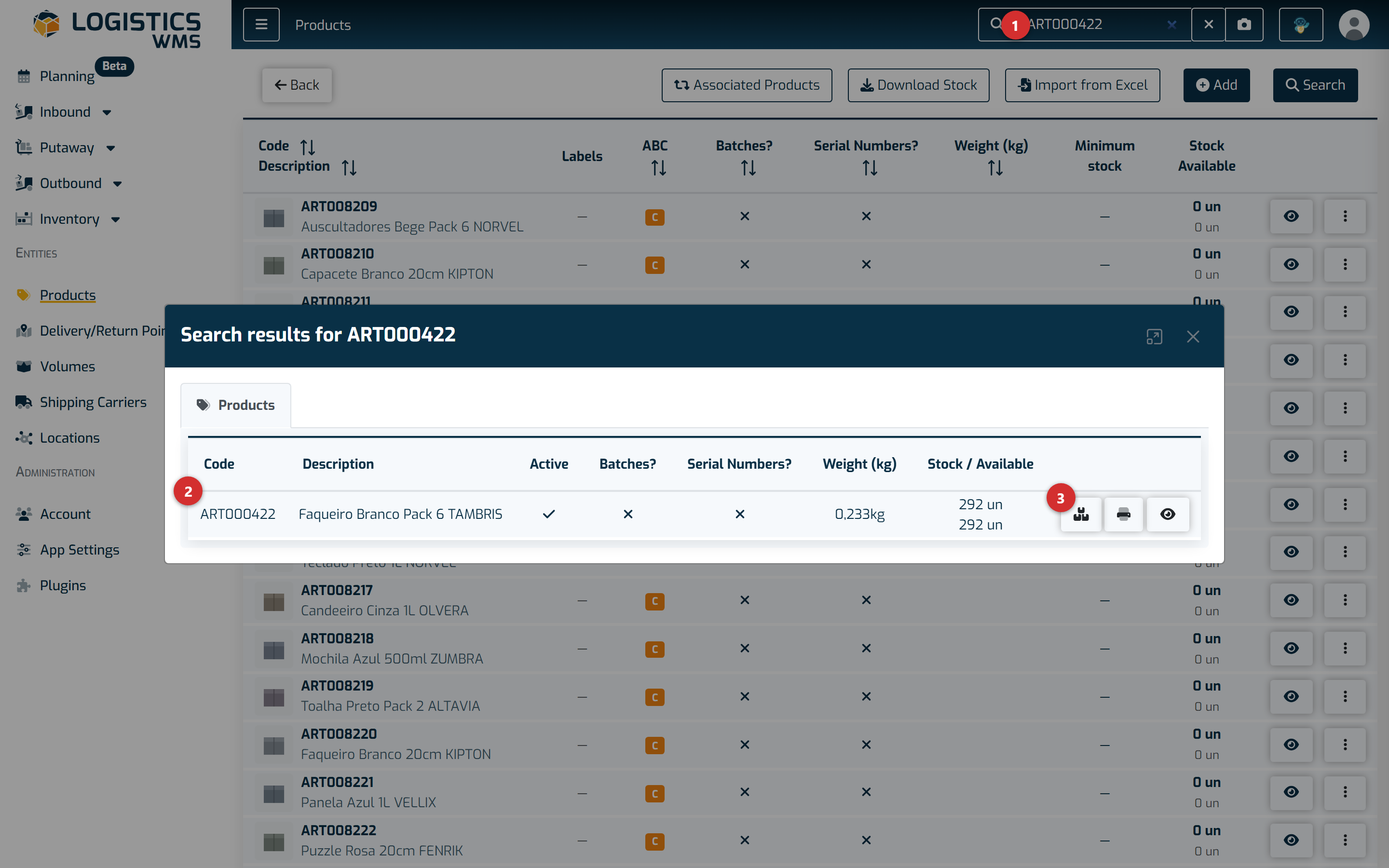
- The search bar looks across the whole application, not just products. Type and press Enter — typing alone does nothing.
- Results open in a window over whatever you were doing, grouped by type. Closing it puts you back exactly where you were.
- The first button on the row takes you straight to the product's stock, without going through the full record.
4. From a document
This is usually the handiest route day to day: you are checking a note and want to know what the warehouse holds of that product, without losing sight of the document.
Open a reception note, from the Inbound menu.
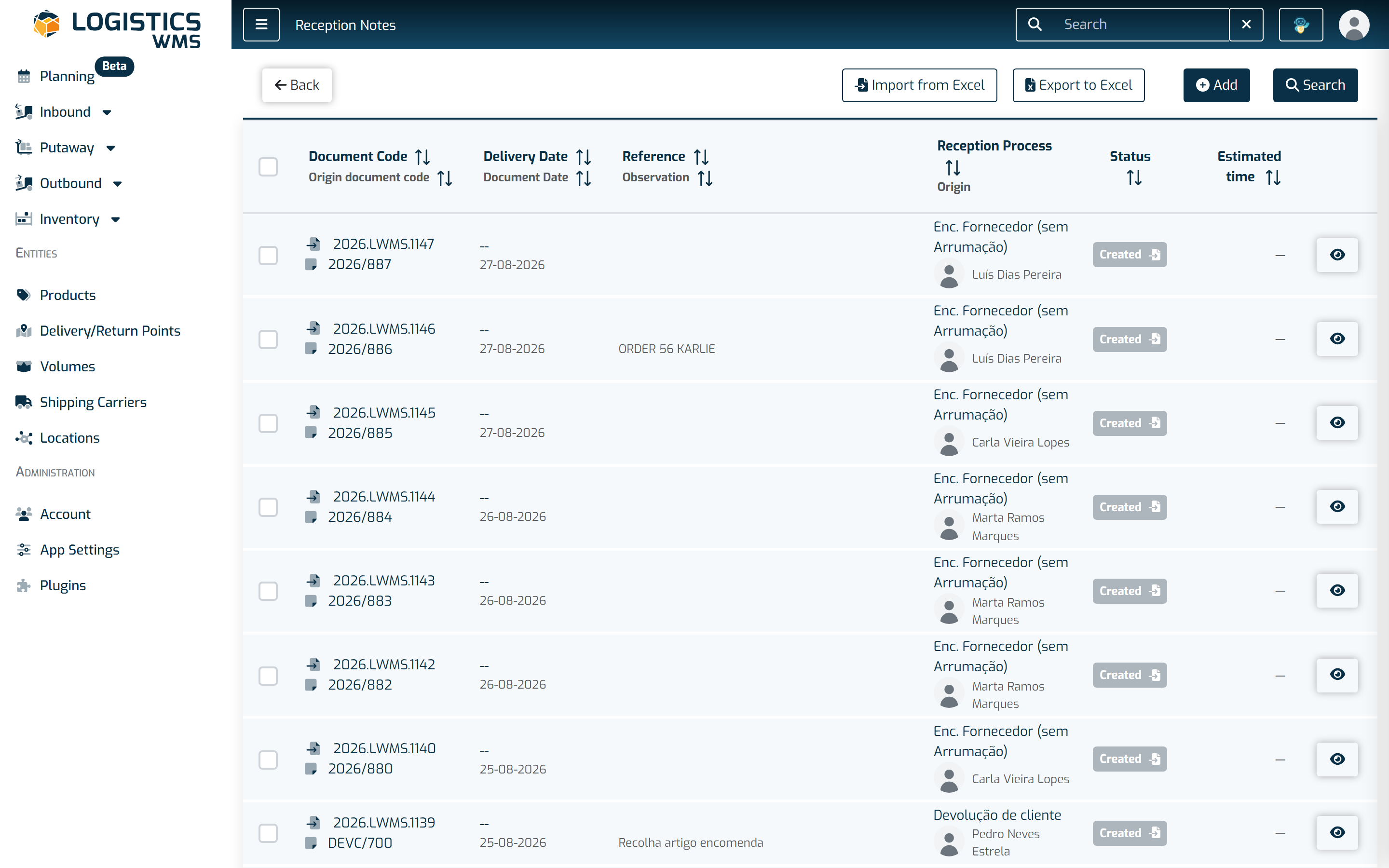
Click View on the note's row, open the Lines tab, and on the product's line choose View stock.
The same works from a shipping order, in the Outbound menu — which is especially useful when you are preparing an order and want to confirm the stock is there before committing to it.
Available stock and total stock: what is the difference?
This is the distinction that causes the most confusion, and it is worth pinning down.
Total stock is everything physically in the warehouse. Count the units on the shelf and this is the number you get.
Available stock is what remains after deducting whatever is already promised to other orders. A reservation takes nothing off the shelf — the goods are still there — but it does stop them being promised twice.
An example: you hold 100 units and 30 are already reserved for a shipping order that has not left yet. Total stock is still 100; available is 70. If an order for 80 arrives, the system will not let it through — even with 100 units in the warehouse — because 30 of them already have an owner.
That is why it is always available stock that decides whether a shipping order can be fulfilled.
Batches close to expiry
In the stock tables and windows, a batch's expiry date changes colour when it needs attention: amber, with a warning icon, while the batch is inside its alert window, and red once it has expired. Hover the date or the icon to see how long is left ("Expires in 12 days", "Expires tomorrow", "Expires today") or that it has "Expired". A batch expiring today still counts as close to expiry, not as expired.
How many days before expiry the alert starts is up to you, and it is worked out batch by batch, in this order:
- The batch's own Alert when batch expires in less than (days) field;
- If the batch has none, the same field on the product;
- If neither has one, the general setting: in Settings, Products tab, Batch & Expiration panel, Alert when a batch expires in less than (days). It comes set to 30 days.
The same window decides the short-expiry warning at reception and the Expiring in this zone layer of the Positions Map, so all of them agree on which batches are close to expiry.
At reception, ticking Do not show this message again on the short-expiry warning silences it only while you keep receiving the same product and batch. As soon as you receive a different product or batch, the warning comes back for the next short-dated one.