
Shipping Order Status
Understand the different statuses of a shipping order in LogisticsWMS and what each one means in the outbound flow, including the new carrier tracking status.
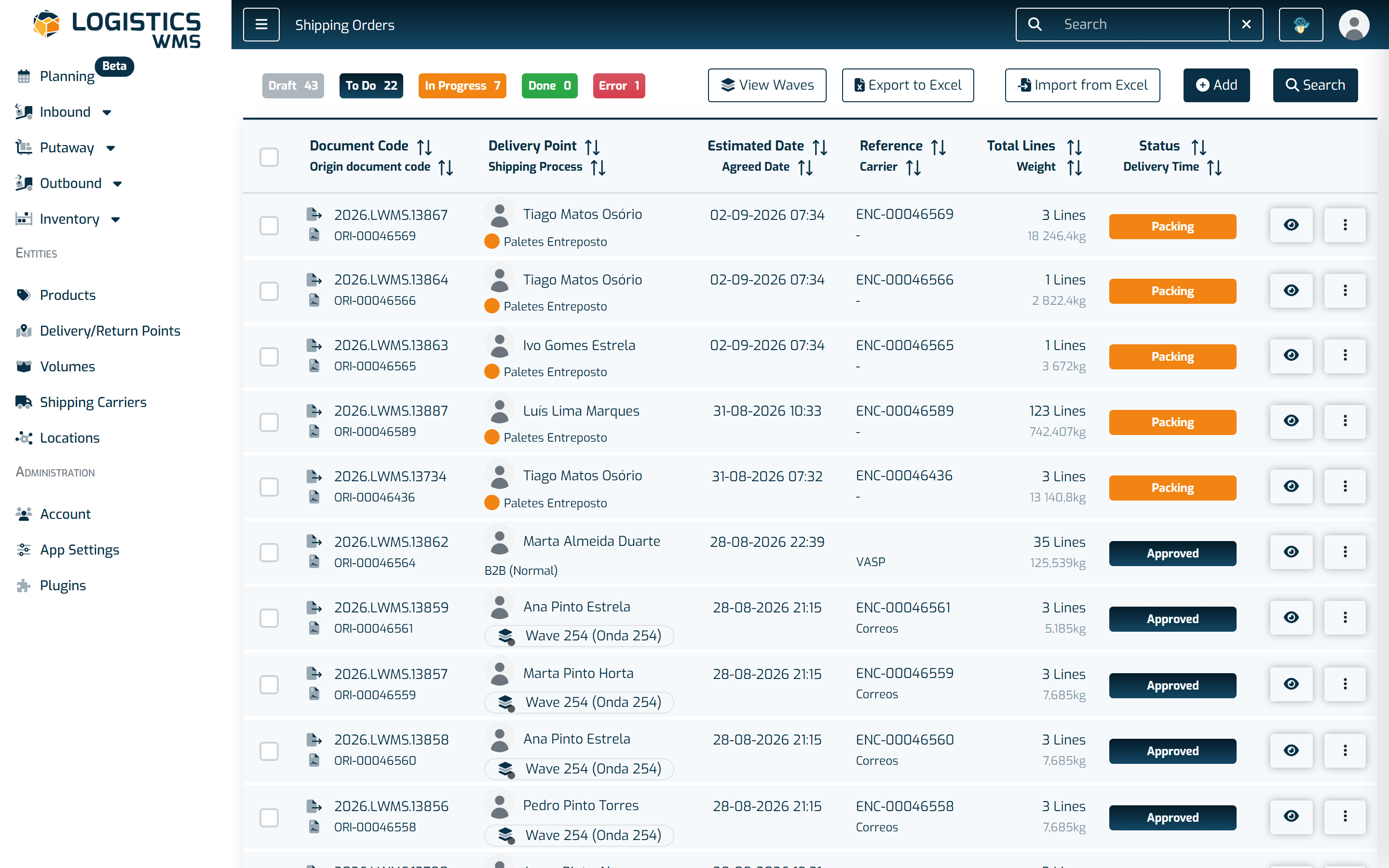
Creating
This is the “draft” status of a shipping order, allowing you to edit the information before the system checks if the conditions to fulfill the order are met. To move to the next status, you need to use the “Send to picking” button.
Created
After using the “Send to picking” button, the order moves to the Created status. This indicates that the system is checking if there is enough stock in the warehouse to fulfill the order. From here, it can move to one of two statuses: Estimated or Not Approved.
Estimated
The system has validated that there is sufficient stock. If the items in the order have a lot but it wasn't assigned during the "Creating" status, the system will assign a lot based on FEFO (First-Expire, First-Out) and FIFO (First-In, First-Out) rules. Once it reaches this status, the Shipping Order appears in the cockpit for you to plan its picking and packing.
Note: The statuses in the Cockpit related to picking and packing differ from those that appear in the Shipping Orders, as they only show that specific process (Picking or Packing) and not the order as a whole.
Not Approved
It has been verified that there is not enough stock. You should proceed to correct or cancel the lines in the Shipping Order.
In Progress
After the operator starts the Picking process, the order moves to the “In Progress” status.
Executed
This status is used only when, in the shipping processes, you indicated that you do not want the order to be shipped automatically after packing (for more information about this configuration, see this article: Shipping Processes).
You must manually use the Ship button so that the stock is removed from the system and the invoice is issued (if you have integration with an invoicing software). You can ship orders one at a time, or select several Executed orders in the list and use Ship Selected to dispatch them all at once.
In Shipping
This status only appears for orders shipped through a carrier with tracking enabled (for example, NACEX or Correios Express). As soon as the order is dispatched, it stays “In Shipping” instead of moving straight to “Delivered”. The status is updated automatically to “Delivered” once the carrier confirms the shipment was actually delivered. You can follow the delivery status and download the label directly from the Shipping Orders list.
If the carrier is set to communicate automatically, the tracking request is sent to the carrier right away at dispatch. If it's set to manual communication instead, the order stays in “In Shipping” and you need to use the Submit to Carrier button on the order to send the shipment to the carrier and start tracking it, it will not move to “Delivered” on its own until you do.
Note: For carriers without automatic tracking, the order still moves directly to “Delivered” at the moment of dispatch, just like before.
Note: If needed, a user with a commercial, supervisor, or admin profile can manually mark the order as “Delivered” from the Shipping Orders list, for example, if the carrier doesn't update the status automatically, or delivery was confirmed through another channel.
Delivered
The shipping process has ended: the stock used to fulfill the order has been removed from the warehouse stock, and the process has been completed.
Canceled
The shipping order has been canceled, along with its lines. If picking and/or packing has already been done, the stock collected by the operator and indicated to the system remains in the chosen packing location (if none was chosen by the operator, the system places it in the default assigned packing location). To be able to use this stock again, it must be put away in a picking location.