
How to perform picking?
Learn how to run a picking in LogisticsWMS: location, product and quantity, the Not Found option, and starting a picking with packing from the box.
Picking (order picking and preparation) is the collection of specific products, in their quantities, from the warehouse.
Instructions
(An operator must be assigned beforehand)
- Open the Instructions menu, available in the side or home menu of the application, under the Outbound section.
- Carry out the Picking:
- Enter the location (the system checks it and warns you if it is not the expected one).
- Enter the product (or volume) (the system checks it and warns you if it is not the expected one).
- Confirm the quantity (if you enter less than required, the system asks you for the remaining quantity. If there is no more quantity at that location, select Not Found).
Note: to carry out a shipment, it must be in the “Estimated” status.
Starting a picking with packing by scanning the box
In a shipping process whose Expedition flow is Picking (with packing) or Picking wave (with packing), the operator picks straight into the box. With the Scan the volume at the start of picking with packing setting on, the operator scans the box they are going to fill before the first location, and no longer has to scan the destination on every line. The setting is off by default.
Turning the setting on
-
Go to App Settings, in the sidebar.
-
On the Outbound tab, open the General tab.
-
In the Picking group, turn on Scan the volume at the start of picking with packing.
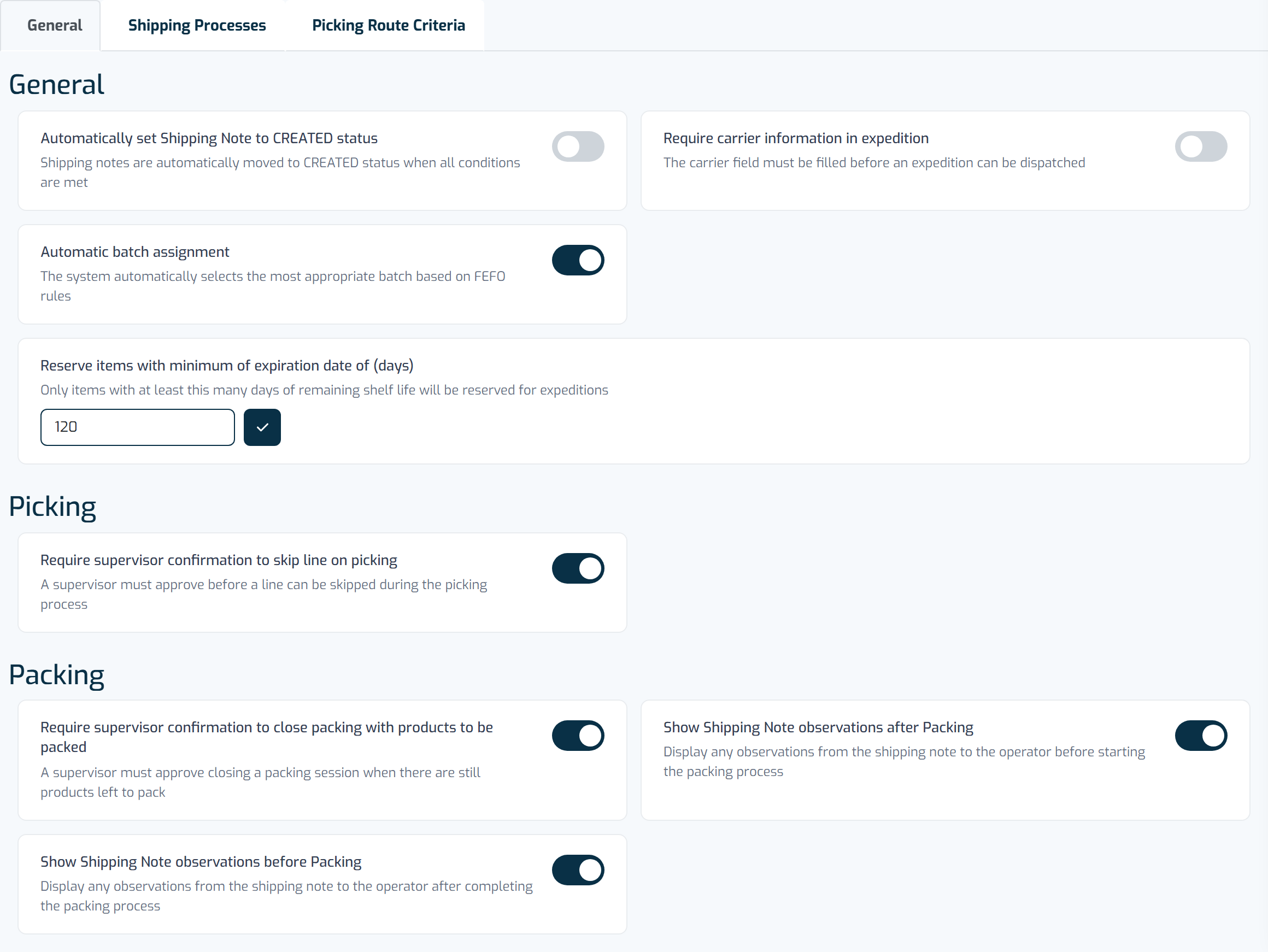
The Shipping tab groups general shipping settings, the shipping process, and picking route criteria.
Note
The change applies to picking screens opened from then on. An operator who is already picking keeps the previous flow until they reopen the screen.
What the operator sees
- When a picking with packing opens, the first step is Scan the volume: the operator scans the box they are going to fill, before going to the location.
- The box stays pinned as the destination. On the following lines of the same packing, confirming the quantity registers the line without asking for the destination again.
- To move to another box, select Change volume (the button shows the current volume's code) and scan the new box. The current volume stays pinned until you scan a valid one, and Keep current volume cancels the change.
- A line that belongs to a different packing asks for its own volume again.
Tip
If you clear Fix destination at the Scan the volume step, you go back to scanning the destination on every line, as before.
I don't have the product requested by the system on the shelf. What now?
If, during picking, you don't find a product requested by the system on the shelf, use the Not Found option.
The system then looks for other locations that may have the required product. If it is not found anywhere else, the system tells you to carry on with the picking, skipping the missing product.
The Not Found option also tells the system that the product is not available at that location, so future picking instructions do not send you to the same shelf for this product.