
How to create a product?
The 'External Code' field holds the product code in the source software. Use it only when LogisticsWMS is integrated with another application.
- Access the 'Products' menu, available in the side menu of the application.
- Select '+ Create a Product.'
- In the 'General Information' tab, provide the required details:
- Code (mandatory)
- Description (mandatory)
- Active: ✅
- If the product is handled in batches, activate the 'Batches?' option. Batches will be created during the product check and stock entry.
- If the product is handled in batches and you need to manage expiry dates, activate the 'Expiry Date?' option. Expiry dates will be created during the product check and stock entry.
- If the product has a serial number, activate the 'Serial Number?' option. Serial numbers will be created during the product check and stock entry.
- If the product is a medication and falls under the category of medication with a security device, activate the 'Security Device?' option.
- Optionally, set a Minimum Stock quantity, add a Photo and assign one or more Labels.
- Select 'Save.'
Note: The 'External Code' field contains the product code in the source software. This field should only be used when LogisticsWMS is integrated with another application.
Editing a product
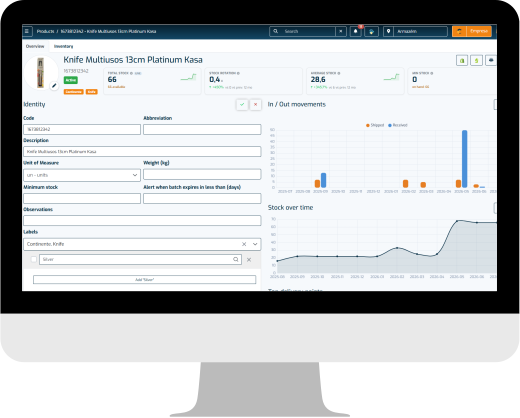
Once a product is created, you edit it directly on its product page — there's no separate edit screen. Open the product from the list and use the Overview and Inventory tabs:
- Each section (General Information, Client Mappings, Labels, and so on) has its own Save/Cancel controls, so you can edit one part without leaving the page.
- The Overview tab also shows KPI cards (current stock, rotation, average stock), a stock-over-time chart, and a Top Delivery Points panel with the destinations that received the most of this product over the last 12 months.
- The product's ABC classification is shown as a badge next to its name, with a tooltip explaining what it means.
Please note
When creating a product, consider the following:
- The 'Code' of the product must be unique.
- The 'Barcode' of the product must be unique. A product can have multiple barcodes, but each one must be unique. The same barcode cannot exist for multiple products.