
Minimum stock: how to set thresholds and catch low stock
Set a minimum stock level for a product and get it flagged automatically whenever it falls below that value.
Minimum stock lets you define the lowest quantity you want to keep on hand for a product, so the system can warn you when it's time to reorder.
Set a global minimum stock
- Go to the Products menu and open the product you want to configure.
- In the General Information section, fill in the Minimum Stock field with the quantity you want to use as the threshold.
- Click Save.
Set a minimum stock per client
- Open the product and go to the Client Mappings tab.
- On the client you want to configure, fill in its own Minimum Stock value.
- Click Save.
💡 Tip: when a client has its own minimum stock defined, it's used instead of the global value for that client. If a client doesn't have one set, the global minimum stock applies.
See what's already on order
On the product's own page, the low-stock indicator also shows how many units are already incoming from open reception notes (anything not yet fully received or cancelled). This way, a low-stock flag doesn't look like nothing is being done about it: you can see at a glance whether a new order is still needed or one is already on its way.
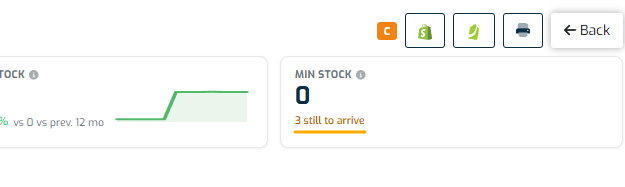
💡 Tip: this incoming quantity is calculated across your whole account, not just one warehouse.
Find products below their minimum stock
- Go to the Products menu.
- Enable the Below minimum stock filter above the list.
- The list shows only products currently below their minimum stock (global or per client, whichever applies).
Print labels for items below minimum stock during receiving
- While performing a reception, items below their minimum stock are highlighted on the line.
- Use the print action on the line, or the header print button, to print labels for those items.
- Choose whether to print one label per article or one label per unit.
Note: Minimum stock is a threshold for your own visibility and printing: it doesn't block receiving, picking or any other operation.