
Serial number control: how to choose each product's level
Choose whether a product asks for no serial numbers, records them at reception and shipping, or follows each unit through every movement.
Serial number control sets, product by product, how closely LogisticsWMS follows each unit by its serial number. It replaces the old Serial Numbers? switch with three levels: Not controlled, Reception and shipping and Full (every movement).
⚠️ Warning: with this update, every product was set to Not controlled, including products that had Serial Numbers? switched on. Those products no longer ask for a serial number at reception until you choose a level for them. Products communicated to NMVS still ask for their serial numbers, as before.
Instructions
-
Go to Products, under Entities in the side menu, and open the product.
-
In the Logistics & flags section, select the value of Serial number control (the pencil).
-
Choose the level. Under each option, a line says what it asks for.
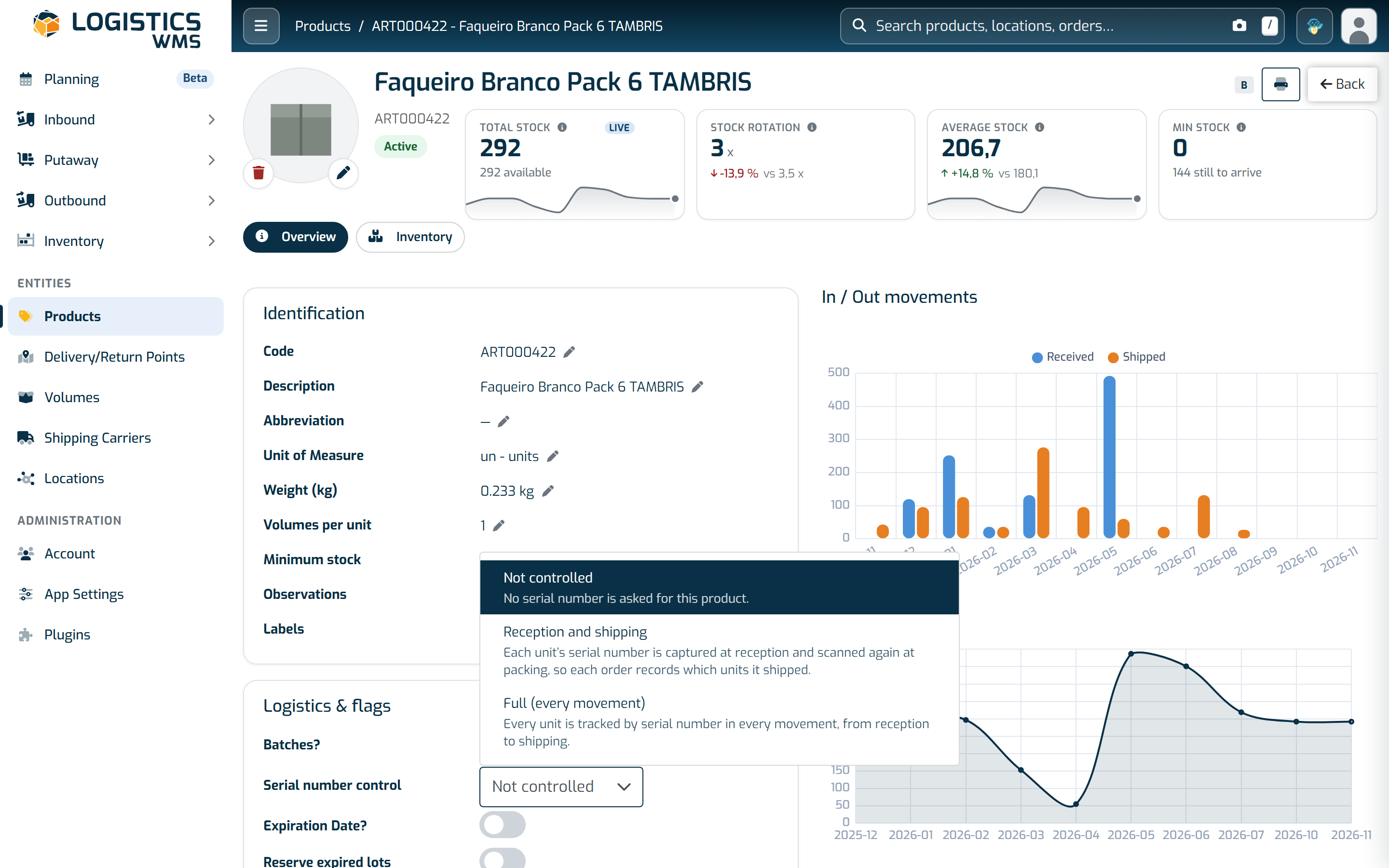
Under each level, a line says what it asks for -
The level is saved as soon as you choose it. Two changes ask you first:
- from Not controlled to Reception and shipping, when the product has stock: the units already in stock have no serial number, so packing will refuse them. Select Turn on anyway to go ahead;
- to Not controlled, when the product has movements. Confirm to go ahead.
You can also choose the level when you create a product. Once the product has movements, the create/edit window no longer changes it: change it on the product page, as above.
The Products list has a Serial number control column and filter, so you can find every product at a given level.
💡 Note: only administrators, and users with the Entities permission, can change the level.
The three levels
- Not controlled: no serial number is asked for this product.
- Reception and shipping: each unit's serial number is captured at reception and scanned again at packing, so each order records which units it shipped.
- Full (every movement): every unit is tracked by its serial number in every movement, from reception to shipping, so the application always knows where each unit is.
Reception and shipping
- Reception: you give one serial number per unit. A serial number that is still received, in stock or picked is refused; one that was shipped or is inactive can be received again.
- Packing: the Scan the serial numbers dialog opens once for each product in the order (lines of the same product are counted together). A serial number is refused if it was never received for this product, belongs to another product, was already shipped or is inactive, and, when the order names its units, if it is not one of them. The same dialog opens when you pick and pack at the same time.
- Shipped: the units become Shipped when the packing is saved, so the shipping order keeps a record of exactly which units left.
- Unpacking: the Scan the serial numbers coming out dialog only accepts units shipped on this order, and they go back to Received. Cancelling the shipping order also puts its units back to Received.
Full (every movement)
- Reception: one serial number per unit. When the reception is closed, each unit is In stock at its location.
- Putaway: the Scan the serial numbers you are moving dialog opens. A unit that is not at the origin location is refused. Moving a whole volume asks for nothing.
- Picking: the Scan the serial numbers you are picking dialog ties each unit to the order, and packing does not ask for them again (in wave picking, they are asked for at packing). The units stay Picked until the order is dispatched, and then become Shipped.
- Stock adjustment: when the quantity goes down, you scan the units that leave (Scan the serial numbers that leave), and they become Inactive with the reason Adjusted out. When it goes up, you scan the units that come in (Scan the serial numbers that come in). A transfer of the same product and quantity asks only once.
- Inventory: the counter scans the serial numbers counted (Scan the serial numbers you counted). A serial number of another product, one already counted, a unit picked or not yet put away, or a number of serial numbers different from the quantity counted is refused.
When the inventory is closed:
- a unit recorded at the location but not scanned becomes Inactive with the reason Not found at inventory;
- a unit scanned but not recorded there is brought in by an adjustment, and taken out of the other location if it was recorded elsewhere;
- units picked for an order, or received but not yet put away, are left out.
💡 Note: you can only switch a product to Full (every movement) while it has no stock. And you cannot leave this level while the product still has serial numbers in stock or picked: ship or regularise them first.
Name the exact units in a shipping order import
The Lines sheet of the shipping order import has an optional Serial Number column, for orders that must ship specific units (see How to import products and delivery points from Excel?):
- Put the serial numbers in the line's cell, one or several, separated by
;,,or spaces. Their number must be equal to the line's quantity. - The product must have serial number control, each serial number must have been received for it (for Full (every movement), it must be in stock), match the line's batch if it has one, and not be asked for by another open order.
At packing, only those units are accepted. For a Full (every movement) product, the line's quantity is also locked, the named units cannot be moved or adjusted, and the order's own picking goes to the locations that hold them. Cancelling the order frees them.
Follow each unit
- On the product page: when the level is not Not controlled, a Serial Number section lists the product's serial numbers with their status (Received, In stock, Picked, Shipped or Inactive), the Location, the Shipping order and Shipped at. It opens on the In the warehouse filter; Shipped and Inactive show the others. On any row, select Movements to open the Movements of window with that unit's history.
- On the shipping order: when the order has serial numbers, a Serial numbers tab lists them. The Excel export of the shipping order detail also has a serial number column, with one row per unit shipped.
Please note
- Serial numbers recorded before this update are Inactive: they only appear under the Inactive filter and packing refuses them. Receiving the same serial number again is allowed.
- A serial number can only be deleted while it is Received. Once it is In stock, only its code can be edited.
- The Serial Numbers? column of the product Excel import is now ignored. Set the level on each product instead.
- Moving a product back to Not controlled keeps its serial numbers, but the Serial Number section is no longer shown on its page.