
How to Configure Labels
Note: You can create more than one logistics label configuration and associate them with one or more delivery points.
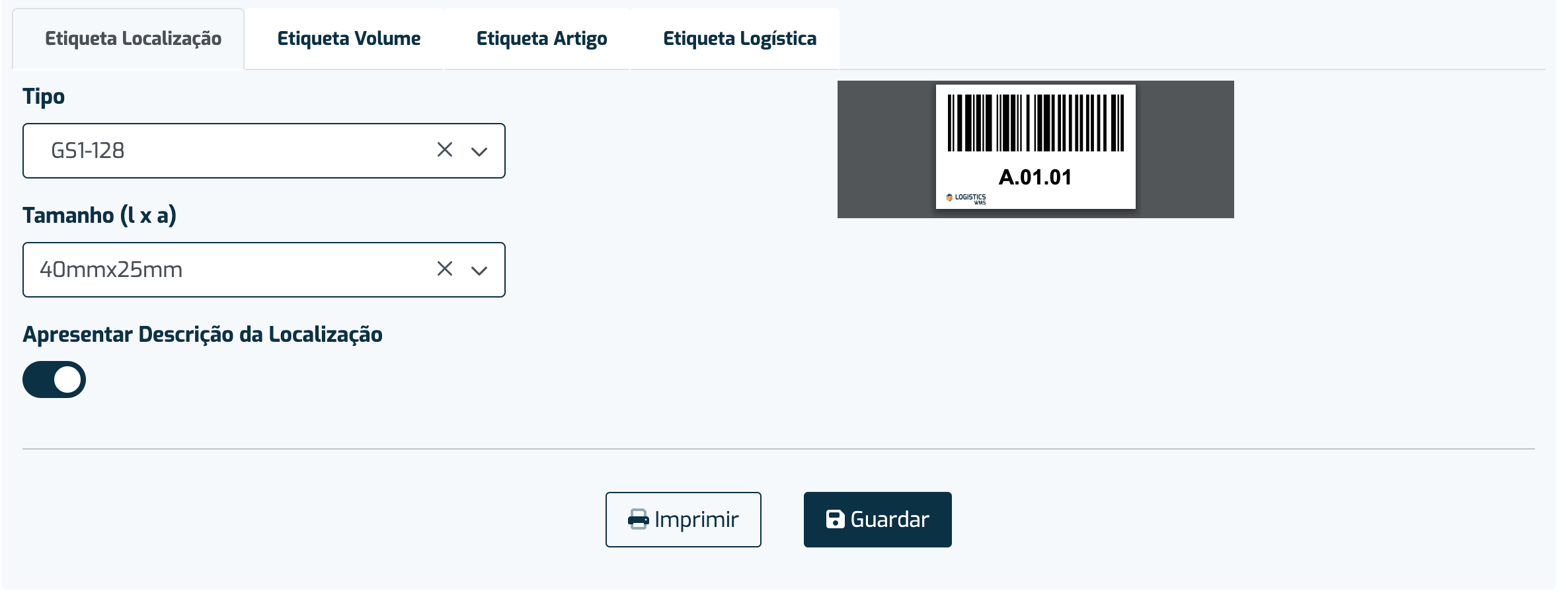
Physical Location Label
- Go to the Settings menu in the sidebar
- Select the Labels tab
- Choose the barcode type you want to use
- Choose the label size you want
- If you want to remove the Location description, disable the option
- Select Save
Volume Label
- Go to the Settings menu in the sidebar
- Select the Labels tab and then the Volume Label tab
- Choose the barcode type you want to use
- Choose the label size you want
- If you want the Volume code, enable the option
- Select Save
Product Label
- Go to the Settings menu in the sidebar
- Select the Labels tab and then the Product Label tab
- Choose the barcode type you want to use
- Choose the label size you want
- If you want the Volume code, enable the option
- Select Save
Logistics Label
Note: You can create more than one logistics label configuration and associate them with one or more delivery points.
- Go to the Settings menu in the sidebar
- Select the Labels tab and then the Logistics Label tab
- Select the Add button

- Select the size and barcode type
- Enable the fields you want to appear on the label
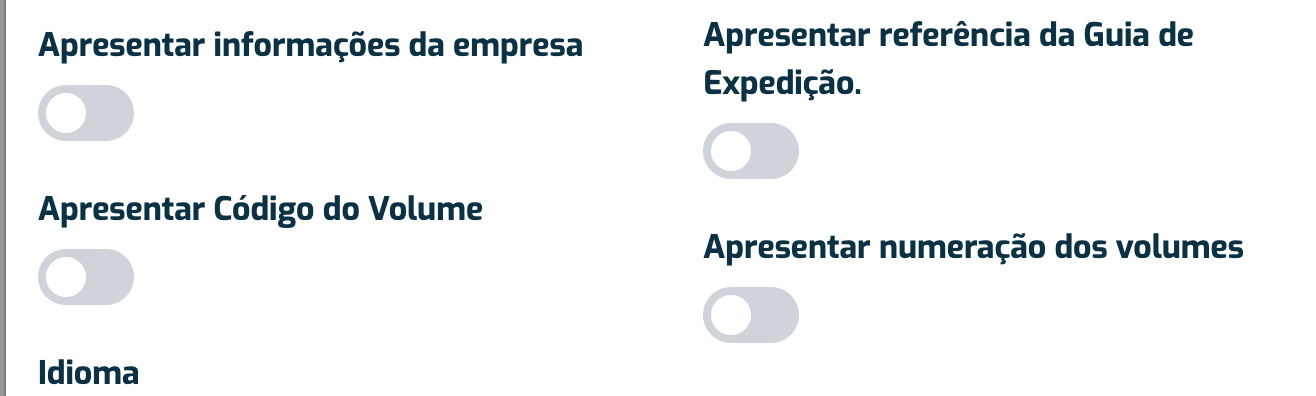
- Choose the language
- In the fields below, choose the position for each piece of information.
- Note that some fields need more forward space so characters do not overlap (e.g. SSCC)
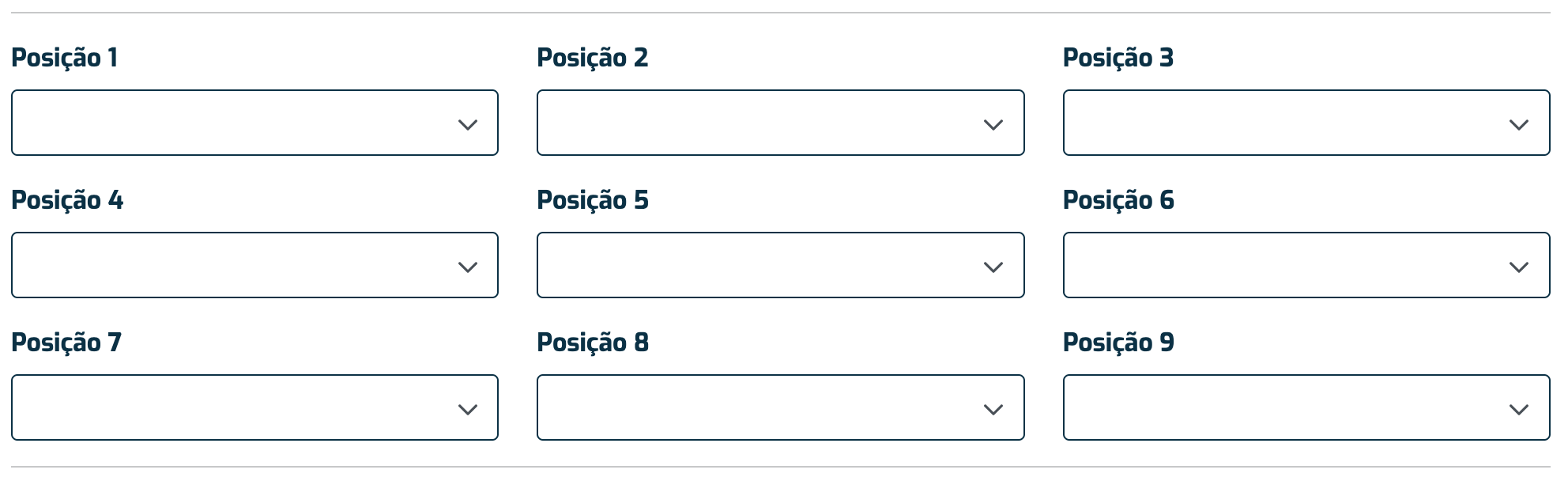
- Note that some fields need more forward space so characters do not overlap (e.g. SSCC)
- Select Save