
What Ticks knows about your company
See what Ticks reads about your company from your data, and tell it in your own words what you do, your goals and your challenges.
Ticks, the LogisticsWMS AI assistant, uses a profile of your company in every answer. The What Ticks knows tab puts that profile in one place: what Ticks already reads from your data, and what only you can tell it, such as what the company does, its goals and challenges, and how Ticks should explain things to you. To learn more about Ticks itself, see Meet Ticks, your AI assistant.
Instructions
- Go to Account, in the Administration section of the sidebar.
- Open the What Ticks knows tab.
- Check the facts under Already known from your data.
- Under In your words, select Let Ticks draft this to get a first version, or Fill it in yourself.
- Review and edit the fields, then select Use this profile (or Save profile, if you filled it in yourself).
Note
Only users with the Administrator or Super Admin profile can open the Account page and this tab.
Already known from your data
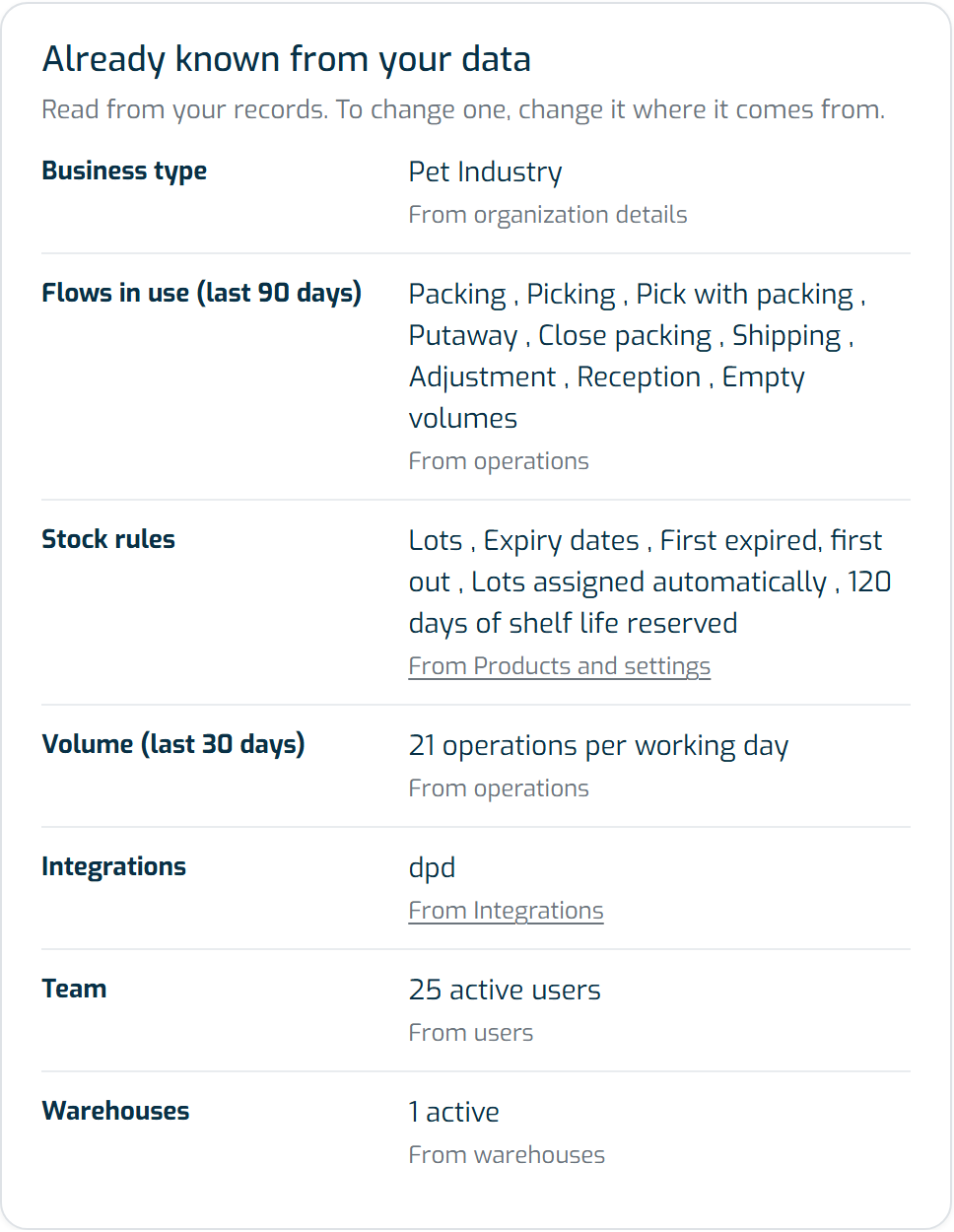
This card lists what Ticks reads from your records, each fact with its source next to it (for example, "From operations"). When the source has its own screen (Clients, Products and settings or Integrations), the source is a link to it.
- Business type, from the organization details.
- Sells to: consumers, businesses or both, worked out from your latest customer orders and connected sales channels. It only appears when your data makes this clear.
- Client companies: how many active clients you have. Only shown for 3PL organizations.
- Flows in use (last 90 days): the types of operation you ran in that period.
- Stock rules: whether you track lots and expiry dates, and related settings such as First expired, first out.
- Volume (last 30 days): average operations per working day.
- Integrations: the integrations you have connected.
- Team and Warehouses: how many active users and warehouses you have.
These facts can't be edited here. To change one, change it where it comes from.
In your words
This card holds what only you can tell Ticks:
- What the company does: a short description, up to 2,000 characters. It's required before the profile can be used.
- Goals and Challenges: up to 10 of each, one per row, with Add a goal and Add a challenge.
- How should Ticks explain things?: Step by step, Explain the why or Straight to the point. The Where it shows card gives an example of how Ticks answers at the level you choose.
Let Ticks write a first draft
If your company has no profile yet, Ticks can write a first version from the known facts. Select Let Ticks draft this: a description and up to five goals and five challenges appear in the fields, marked Draft from Ticks · not used yet. The explanation level is left for you to choose.
Edit the draft as you like, then select Use this profile. Nothing is saved, and Ticks does not use the draft, until you do. Discard draft throws it away.
If Ticks can't write a draft right now, or has reached its limit for the moment, a message tells you so and you can select Try the draft again or fill the profile in yourself. Fill it in yourself opens the same fields marked Not saved yet, with Save profile and Cancel.
Edit a profile in use
Once the profile is in use, the card shows In use · changes save as you type and every change saves on its own, with no save button:
- The description saves when you click away, or when you press Ctrl+Enter (Cmd+Enter on a Mac). Esc undoes the edit.
- A goal or challenge saves when you leave the row, or when you press Enter, which also opens a new row.
- The explanation level saves as soon as you pick one.
A tick confirms each save. If a save fails, the field is marked Not saved and keeps what you typed, so you can try again. Under the fields you can see who last changed the profile and when.
Important notes
- Ticks also keeps the profile up to date from your conversations: when you correct it or tell it something new about the company, it proposes the change in the chat. Nothing is saved until you confirm it with the button, and only an Administrator or Super Admin can confirm it.
- While the setup of your account isn't finished, the Finish setting up checklist on the Organization tab includes a Company profile step. Describe your company brings you to this tab.