
Add and manage users
Learn how to add new users, assign warehouses and roles, and deactivate or reactivate them later.
Add a new user
-
Go to Account, in the Administration section of the sidebar, and open the Users tab.
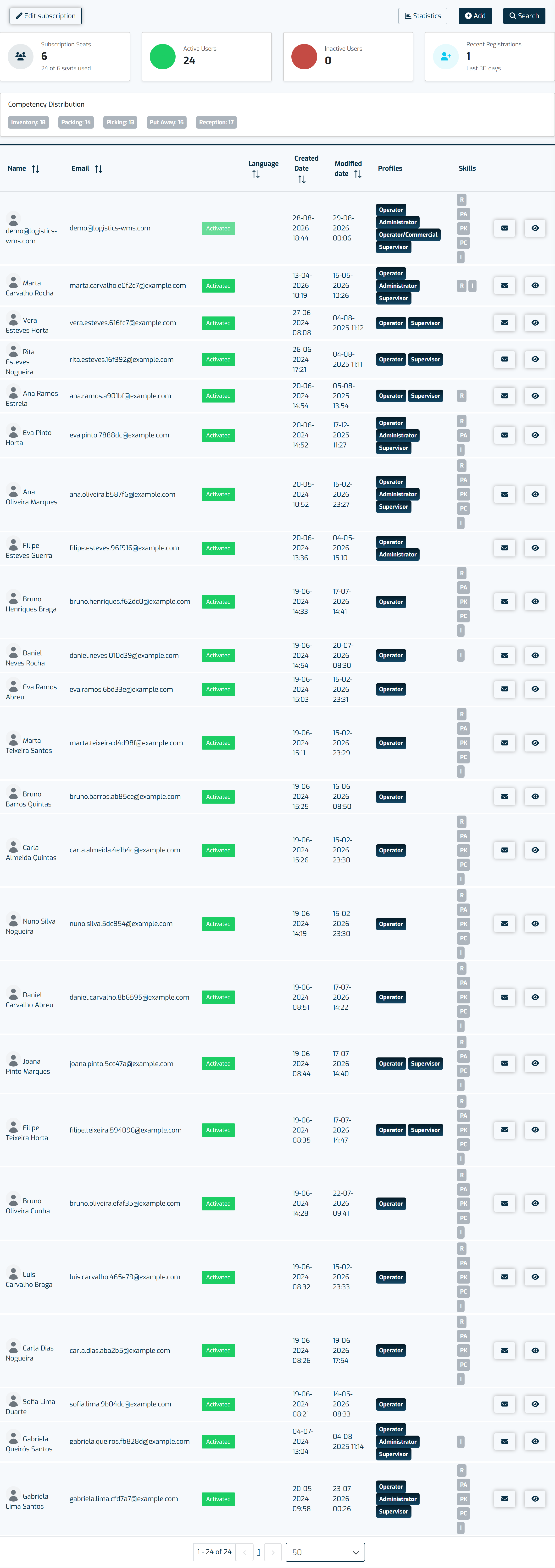
The Users tab lists who has access, their profiles and competencies, and lets you activate or deactivate each account. -
Select Add and fill in the following fields:
- Name
- Warehouse
- Roles (learn more about roles here)
-
After filling in the information, click Save.
-
To access the account, the user must go to https://app.logistics-wms.com/, enter their email, select “Can’t log in?”, and follow the steps provided.
-
To configure working hours and skills, follow the steps described here.
Deactivate a user
- Go to Account, in the Administration section of the sidebar, and open the Users tab.
- In the users list, click the “Active” button, which will change to inactive.
Note: If you need to reactivate a user, use the search in the same menu and select the “Inactive” filter to display previously deactivated users.