
Coverage: who is on the floor, hour by hour
See how many people your usual week puts on the floor each hour, where the gaps are and who has the skills to cover them.
The Coverage tab shows your usual week as a grid: how many people are on the floor in each hour, overall or for one skill. It flags the open hours with no one, or only one person, and tells you who could cover them, so you can spot a thin shift before it becomes a problem.
Coverage is built from two things you already set: the company's opening hours and each person's working hours. If you're not sure how the two differ, see Company Schedule vs. Work Schedule.
Instructions
- Go to Account, in the Administration section of the sidebar.
- Open the Coverage tab.
- Under Show coverage for, choose Everyone or a single skill: Reception, Put Away, Picking, Packing or Inventory.
- Select an hour in the grid to see, in the side panel, who is working then and who could cover it.
Note
The Account page, and so the Coverage tab, is only available to users with the Administrator or Super Admin profile.
Reading the grid
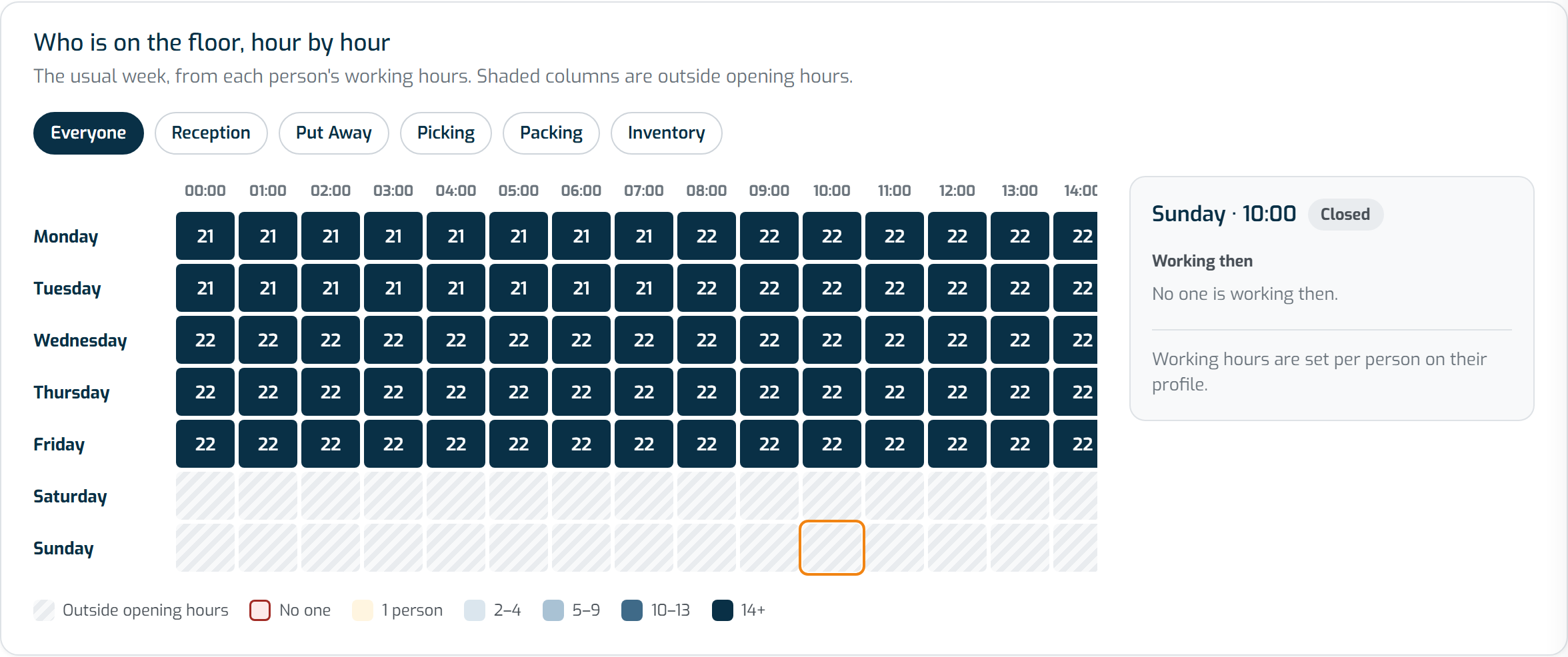
Each row is a weekday, starting on Monday, and each column is an hour. The columns run from the earliest to the latest hour found in the opening hours or in anyone's working hours. Each cell shows how many people are on the floor in that hour; with a skill selected, only the people who have that skill are counted.
- A person counts in an hour when they work at least 30 minutes of it. Someone who starts at 08:45 counts from the 09:00 column onwards.
- A shift that ends after midnight carries on into the early hours of the next day (Sunday's carries on into Monday).
- Hatched cells are outside opening hours. If someone works then, the number still shows, but the hour is never treated as a gap.
The colours match the legend under the grid:
- Red – No one: an open hour with nobody on the floor, or nobody with the selected skill.
- Amber – 1 person: an open hour that depends on a single person.
- Blue, from light to dark: 2–4, 5–9, 10–13 and 14 or more people.
Red and amber cells are the gaps. When the tab opens, the first gap of the week is already selected; if there are no gaps, the current hour is.
Tip
You can move around the grid with the keyboard: the arrow keys move between hours and days, and Home and End jump to the first and last hour of the day.
The side panel
The panel next to the grid shows the selected day and hour, with a summary such as Gap: no one working, Only 1 person or the number of people on the floor.
- Working then lists everyone on the floor in that hour, with the shift that puts them there and their skills. Select a name to open that person's profile.
- When the hour is a gap, Qualified people who could cover lists the active users with the right skill who aren't on the floor then. People who work that day come first, with their shift for the day, since it could be extended; then come the people who don't work that day, marked Not working on and the day. If nobody else has the skill, the panel says No one else is qualified.
Coverage gaps on the Organization tab
The Organization tab of the same page has a Coverage gaps this week card. It lists the week's gaps, for everyone and for each skill, with consecutive hours grouped together, and Open coverage takes you to the Coverage tab. When there are no gaps, the card tells you that every open hour has at least two people for each skill. The card only appears once at least one person has working hours.
Important notes
- Coverage is read-only. To change someone's working hours or skills, edit their profile: see How to customize your profile. The opening hours are edited in the Opening hours card on the Organization tab.
- Coverage shows the usual week, from the recurring working hours, not a particular date.
- Only active users count, and only through the working hours set on their profile. Someone with no working hours is not counted on the grid (Coverage does not assume they work the company's opening hours), but they can still be suggested as cover.
- If nobody has working hours yet, the tab tells you so and offers Go to the Team tab.
- If the opening hours aren't set, the tab warns you and treats every hour in which someone works as open. Use Set opening hours to add them.