
How to customize your profile
Learn how to update your profile details, photo, work schedule and skills in the application.
How to update your details (name, email, language, and password)
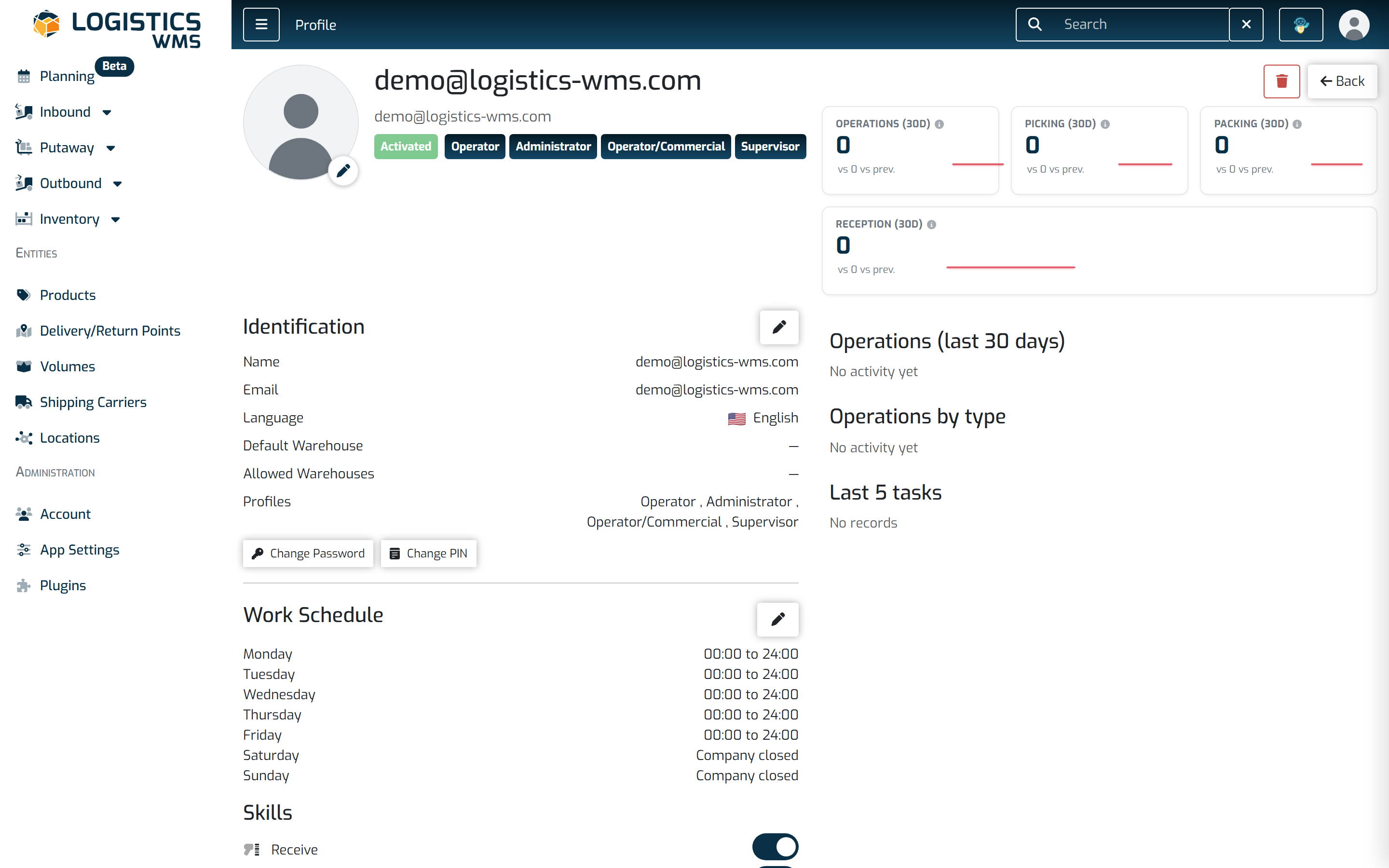
- Go to your profile by clicking the profile icon in the top right corner.
- In the Identification section, select the edit (pencil) icon.
- In the modal, update the information you want to change.
- When you're done, click Save.
Note: The Profile type field can only be edited by users with administrator permissions.
How to change your profile picture
- Go to your profile by clicking the profile icon in the top right corner.
- Click the edit icon below your profile picture.
- Choose the file you want to use (.png, .jpeg, .svg).
- When you're done, click Save.
Note: You can also update your picture in the same modal where you edit your identification.
How to change your work schedule
Important: Only users with a Supervisor or Administrator profile can make changes to the work schedule.
- Go to your profile by clicking the profile icon in the top right corner.
- In the Work schedule section, select the edit (pencil) icon.
- Enable the days you want to set a schedule for.
- Only days defined in the company schedule can be activated.
- Days marked as Company Closed cannot be used to create a schedule.
- Fill in the start and end times.
- You can define up to two time periods per day, as long as they don’t overlap.
- Only times within the company’s allowed schedule can be selected.
- Once everything is set, click Save.
How to update your skills
Important: Only users with a Supervisor or Administrator profile can update this information.
- Go to your profile by clicking the profile icon in the top right corner.
- Enable or disable the skills you want to change.