
When a shipping order is "Not Approved"
How lot assignment works in LogisticsWMS outbound orders and how to condition it by expiry, FIFO or manual selection.
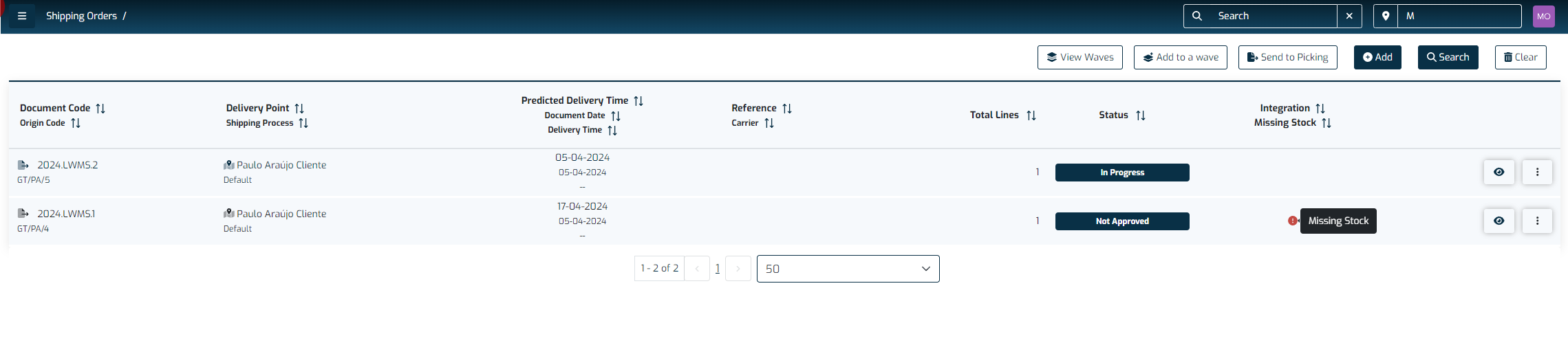
To cancel the line:
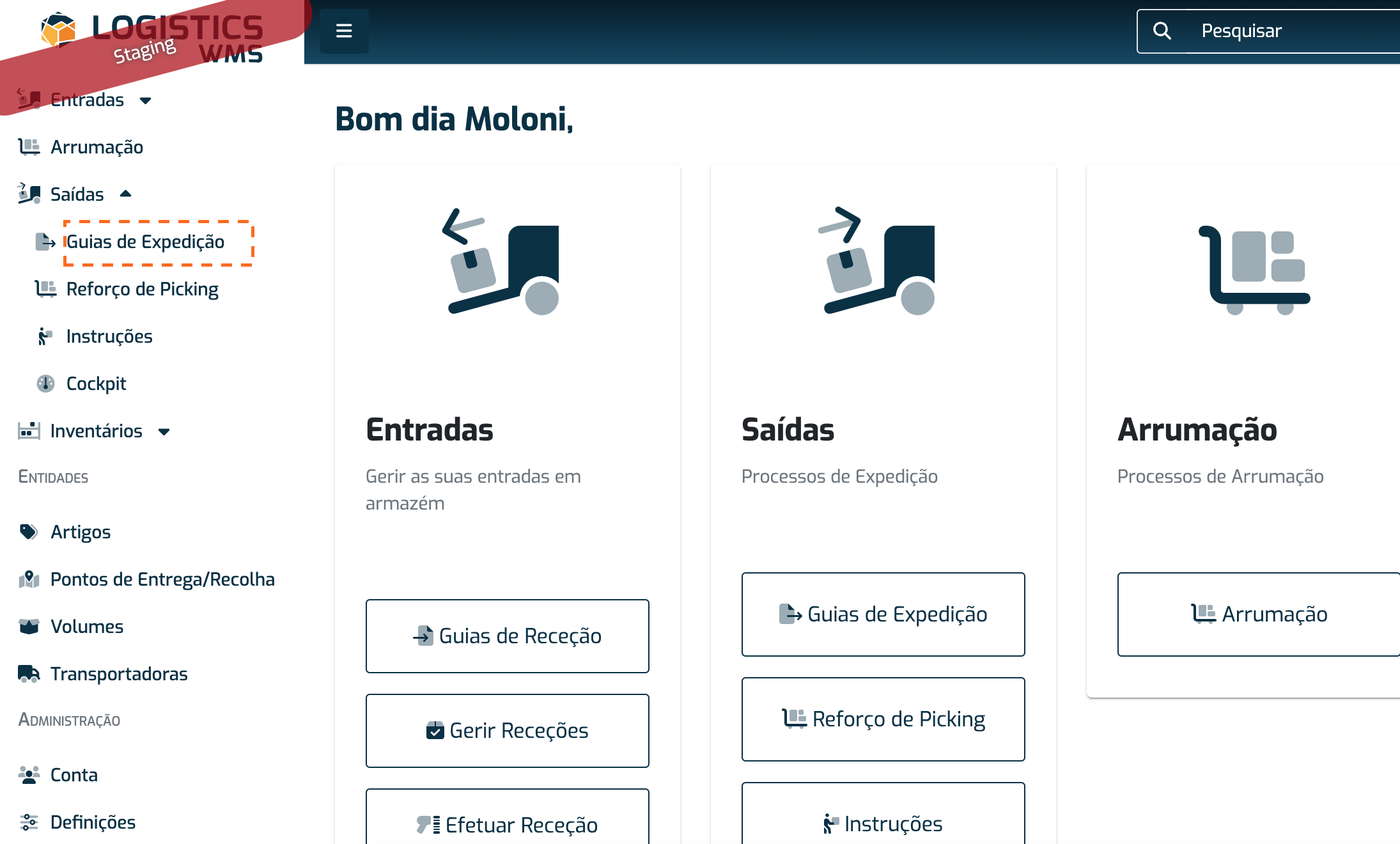
- Go to the "Shipping Orders" menu, available in the sidebar or homepage of the application, under the "Outbound" section.
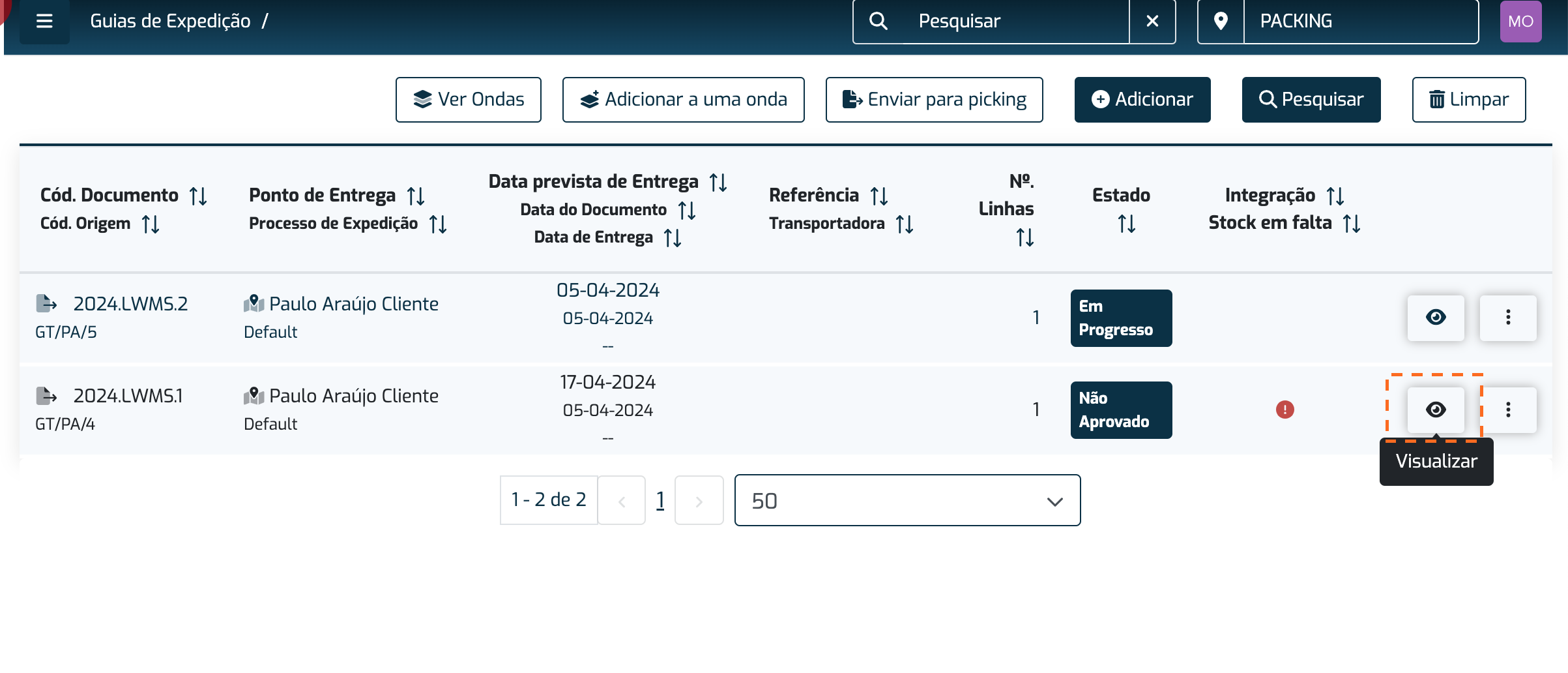
- Select "View" option on the shipping order that is marked as not approved.
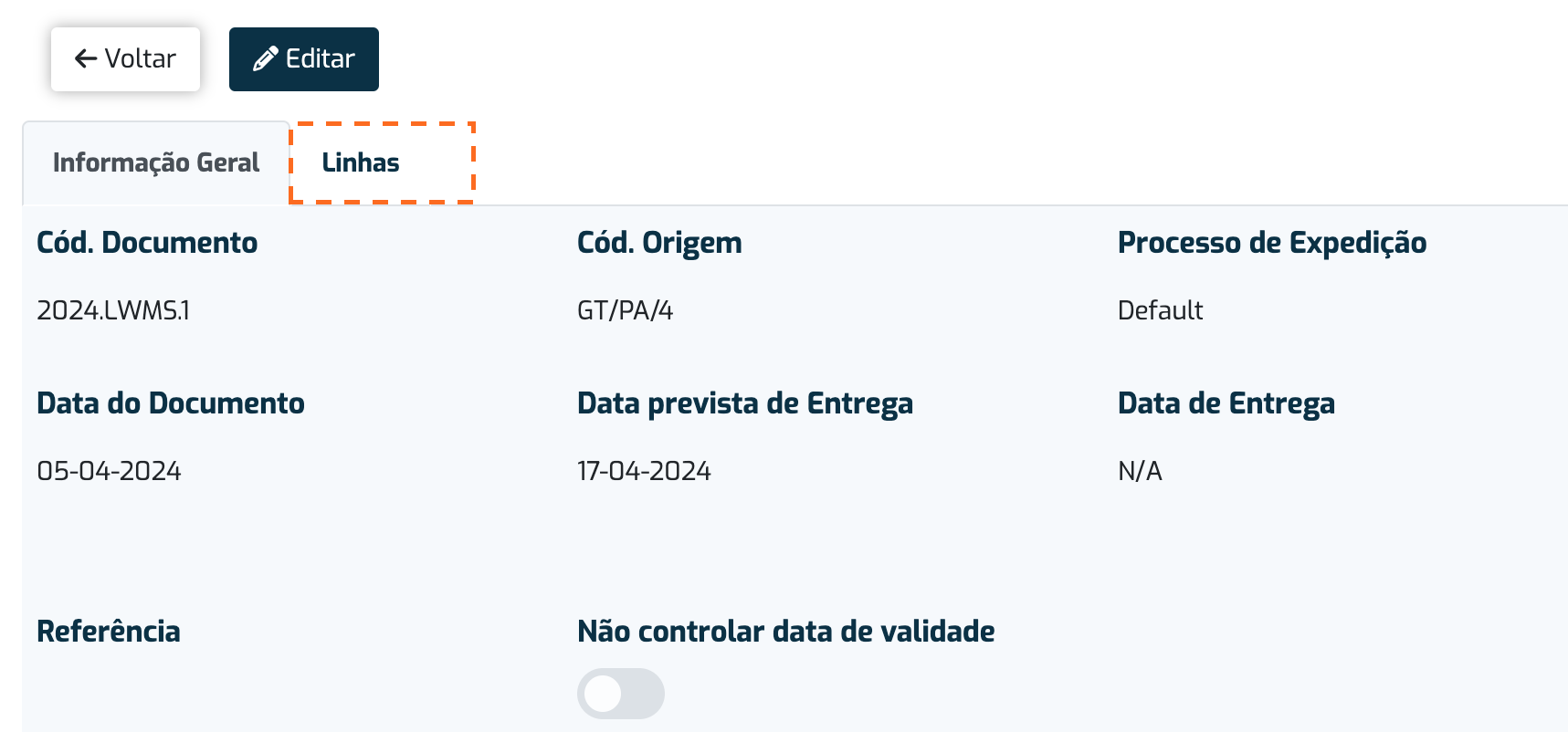
- Navigate to the "Lines" tab.
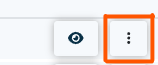
- In the table, click the button.
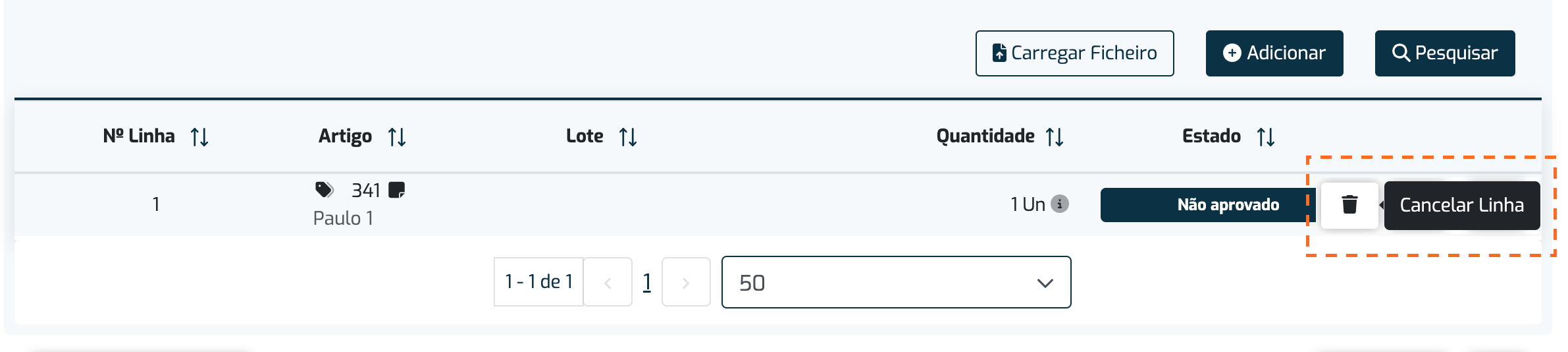
- Select "Cancel Line."
- Confirm that you want to cancel by selecting the "Yes" button.
- After confirming that no other lines are marked as not approved, resend the order for picking.
To adjust the quantity:
- Go to the "Shipping Orders" menu, available in the sidebar or homepage of the application, under the "Outbound" section.
- Select "View" option on the shipping order that is marked as not approved.
- Navigate to the "Lines" tab.
- In the table, click the button
- Select "Edit."

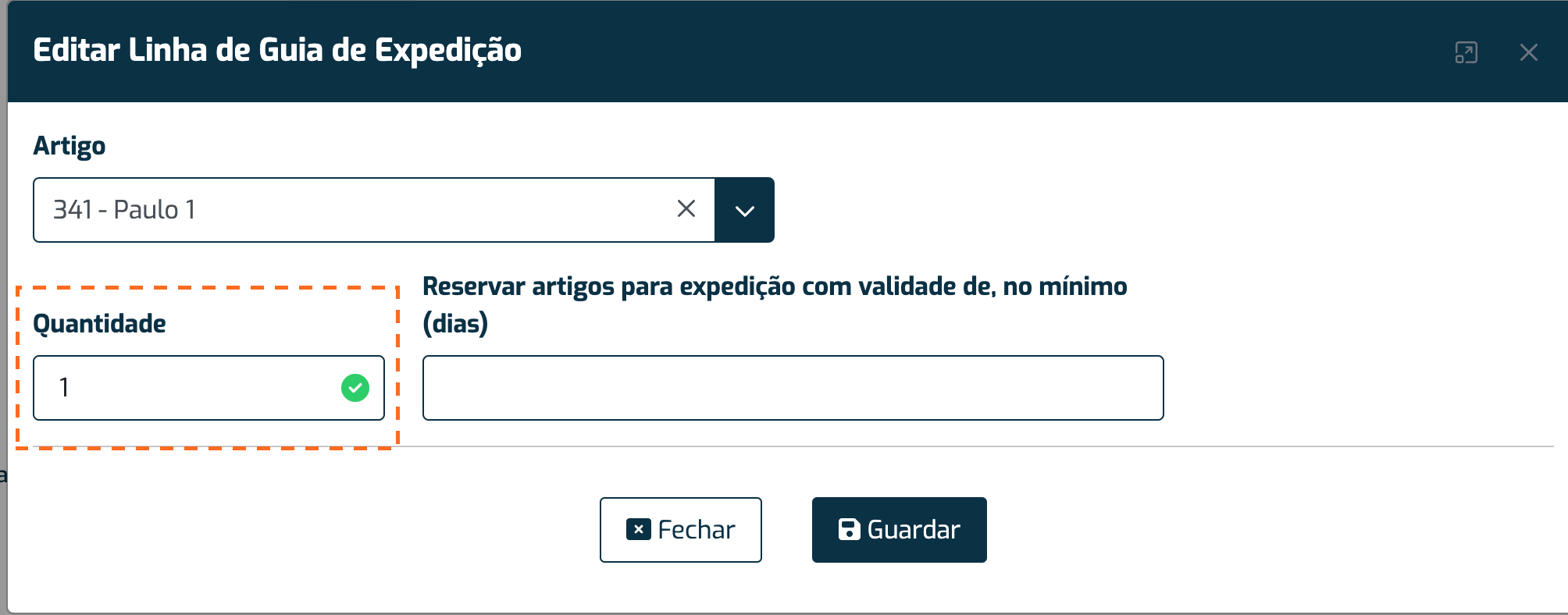
- Adjust the quantity and save the changes.
- After confirming that no other lines are marked as not approved, resend the order for picking.