
How to create an Inventory?
Create an inventory count in LogisticsWMS, choosing the warehouse or zone to validate and the products to include.
Instructions:
-
Navigate to the "Inventories" menu, available on the side menu or the home page of the application.
-
Go to the "Inventory by Location" submenu.
-
Select "+ Add."
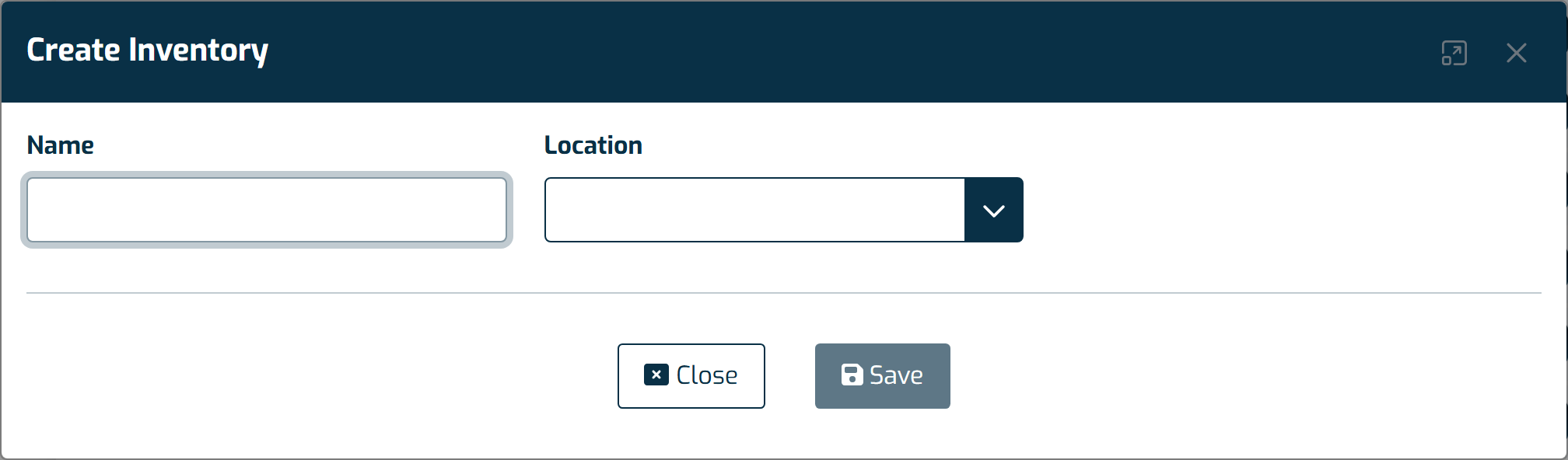
- Enter the name.
- Choose the location (it can be a warehouse, zones, or physical locations).
- Click "Save."
Note: When creating an inventory, if you choose a specific zone in the warehouse, only the physical locations created under that zone will be validated.